A few years ago I sold all
my traditional darkroom equipment, lock, stock, and tongs. After sitting
untouched in my new home's basement for several years, I decided
it all had to go. I loaded enlarger, lenses, carriers, and trays into
my car, and took them to a local photo show and sold them to practitioners
of silver halide printing for below bargain prices. Why? Many years
before my fire sale, I happily made the transition to the digital darkroom
and now that all of these boxes upon boxes of traditional darkroom gear
are gone, I haven't looked back.
Assembling your own digital darkroom isn't complicated or expensive
and, much like putting together a camera system, you can tailor the
equipment to meet your specific applications and budget.
You can build a complete system for less than $1500 or spend more than
the cost of a shiny new BMW 3-Series; it all depends on your budget
and what you're trying to accomplish.
|

|
Options And Details
Much like you can make photographs with a $700 Canon Elan 7E or a $29
Holga, virtually any new computer system can be the basis of a digital
darkroom. But digital imaging, like the devil, is in the details, so here's
how to start assembling your new darkroom.
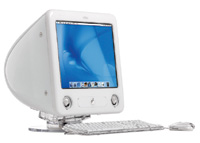
Budget-minded digital imagers could start with the least expensive eMac,
iMac, or Microsoft Windows-based computer they can find. As I write this,
you can purchase a new eMac from the Apple Store (www.apple.com/store)
for less than $800. This gets you an 800MHz PowerPC G4 processor, 128MB
RAM, 40GB hard drive, CD/DVD drive, internal modem, and built-in 17"
CRT monitor. A Windows based package from eMachines (www.emachines.com),
such as the T2240, costs slightly more than $600 and features a 2.2GHz
Pentium chip, 128MB RAM, 40GB hard drive, CD-ROM, and external 17"
CRT monitor.
When it comes to CPUs, faster is better, but you don't lose your
mind about it. Adobe's Photoshop Elements 2 (www.adobe.com)
requires only a Pentium or faster Intel Processor for the Windows version
and any PowerPC-based Macintosh for the Mac OS version. I'm running
the Full Monte Photoshop on a 600MHz
Power Macintosh G4 with 768MB RAM and a similarly RAM-ed 1.6GHz Pentium
IV eMachines computer. Would I like more power? Yes, but I'd like
to own a Corvette, too.
|
|
Fill Up With RAM
You can never have too much RAM (Random Access Memory), so get as much
as you can afford. Even for the least expensive system, I urge you to
have a minimum of 256MB, but more is better. If the computer you're
considering won't allow you to increase the amount of memory, choose
another one. Photoshop Elements, for example, requires only 128MB of RAM,
and that doesn't include the operating system and all the other
stuff computers use.
Hard Drive Space
I hate to contradict Mies van der Roh, but when it comes to hard drives,
more is more. The 40GB hard disks included in our theoretical systems
are more than adequate, but more space is always useful. With 80GB hard
drives selling for under $105 at places such as www.dirtcheapdrives.com
it makes sense to upgrade or add to the puny drive in your computer. Two
drives are better than one: I have two 40GB drives inside my Power Macintosh
G4. When there's a problem starting from the main drive, I have
another operating system installed on the second drive enabling me to
start the computer and fix problems on the other drive. This is a trick
I learned from Kevin Elliott (www.macmdcare.com)
who also partitioned my main hard drive so that one boots from Mac OS
9, the other from OS X. Keep in mind the corollary to the More rule; backing
up is harder to do. And you better back-up.
|
|
Monitor Size
Bigger is better and larger monitors have become more affordable. You
can edit images on the eMac's 17" screen, but another rule
of thumb is to get the largest monitor your budget permits. Over time
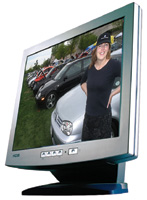
I've migrated to a KDS 19" LCD monitor for my Mac OS X machine.
Older LCD screens were not adequate for critical digital image manipulation,
but after Apple introduced their Studio Display series of LCD screens,
the ball game changed dramatically. I have a 15" (I know, it's
waaay too small) Samsung LCD on my eMachines box, but I do little imaging
with that computer. (More on that detail later.)
Operating System Options
Asking about the kind of computer I use is as relevant as knowing the
kind of camera I use. It doesn't matter if I use a Contax or Canon
(I use both) and you have 12 different Nikon lenses and several bodies.
The same is true for operating systems. Since 1984, I've been using
both Mac OS and Windows (previously MS-DOS) operating systems, but 90
percent of my imaging is done under Mac OS X, the rest under Windows XP.
I always advise people to purchase a computer that provides the best support.
Not customer support; all computer companies provide universally bad--although
some strive for intolerable--customer support, I mean the kind of
help you can get from a friend--in my case, Kevin.
A three-year study of 3.7 million graphic design and design professionals
done by Gistics, Incorporated showed 49.8 percent used Mac OS computers,
37.6 percent used Windows, with the remainder on UNIX-based systems. Yet
while the Mac is entrenched in some areas, it's losing ground in
others. Kodak, for example, only offers its superb ProShots software for
those portrait photographers using Microsoft Windows. At PMA, I asked
if they would limit their film-based systems to Canon or Hasselblad users
but never got a satisfactory answer. No matter what system you decide
on, one truth remains: Neither platform--Mac OS or Windows--is
perfect and you get all of the baggage that comes with that choice.
|
|
The Law Of Obsolescence
What kind of computer should you buy? One answer is based on Farace's
immutable rules of the computing universe: No matter what kind of computer
you buy, it will be replaced by a cheaper, faster version within six months.
Don't let that depress you. Start by purchasing the most powerful
computer you can afford. The bad news is that even the most advanced personal
computer will be technically obsolete in 18 months. Maybe you'll
be lucky and stretch it to two years, but maybe not. My G4 has lasted
two years, mainly I think, because of my upgrade to Mac OS X.
Nibbling away at this obsolescence period is what I call the "mud
flaps" factor. Over time, many computer users add software that
makes their computer easier (or cooler) to use. Sooner or later, all of
these bits and pieces take their toll, reducing the amount of available
resources and creating conflicts and incompatibles. This happened to my
Windows XP computer and that's why after all of these years of being
ambidextrous I am adding another Macintosh--eMac, iMac, or maybe
a (out-of-production) Cube to replace it.
(Readers worried I'll abandon Windows products will be glad to know
that Prime Computers has offered me the loan of its lab with four networked
computers running different versions of Windows to test products for Shutterbug.)
The Scorecard
Building a digital darkroom, it turns out, is similar to building a traditional
one. Based on your budgetary constraints, you assemble the tools that
match the kinds of images you want to produce. I think it's possible
to assemble a digital darkroom containing all of the components that I
have outlined for less than the cost of a traditional wet darkroom--and
you don't have to soak your fingers--or tongs--in chemicals
or work in the dark.
Monitor Size
When comparing CRT monitors, keep in mind that a monitor's size
refers to an approximate diagonal measurement of the monitor's tube,
not what you can actually see on the screen. One of the big differences
between flat panels and glass CRTs is that LCD screens measure their actual
size. That's why a flat panel monitor always provides more usable
work area than a CRT of the same stated size.
Healthy Imaging
When working at a computer, one way to preserve eye and muscle health
is to take alternative task breaks throughout the day. San Francisco's
Occupational Medicine Clinic recommends a 10-minute break once an hour
and a computing day of four to six hours. The British Association of Scientific,
Technical, and Managerial Staffs recommends a 30-minute break with a maximum
of two hours at the keyboard. Taking periodic breaks not only makes you
healthier, but also more productive. If you work until your muscles ache,
you've waited too long.
|