


- REVIEWS
Camera Reviews 
More Reviews Mobile Reviews Photography Reviews - GALLERIES
- VIDEOS
- BUYER'S GUIDES

F/8 And Be There… Or Not Film + Digital = Photograph
All Photos © 2004, Joe Farace, All Rights Reserved
The biggest challenge when photographing cars at auto shows--indoors or out--is dealing with cluttered backgrounds. In the past I've used low angles, high angles and postproduction techniques to blur the setting and add some zoom-zoom. That approach shifted my focus from the subject to its surroundings, so I decided to stop worrying and digitally place these show cars into realistic backgrounds. This technique uses Adobe Photoshop CS, but any image-editing program with layers capability will work. The rest of the tools are common to other software or are available as Photoshop compatible plug-ins.

One of the two images that make up this composite image was created with film
while the other was captured digitally. While this mixed media approach caused
me to add one effect (film grain) similar results could be obtained with film-film
images or digital-digital image files.
1. The original background photograph was made on 35mm Kodak
Portra 400 black and white film (C-41 process) with a Horizon 202 panoramic
camera. Having a car in the shot, in this case my GTI 337, let me later re-size
the hot rod's image in relation to the VW, but it's not necessary.
The negative was digitized with an Epson Perfection 4870 scanner using LaserSoft's
SilverFast software, which includes profiles for various manufacturers'
negative film.
 |
|
|
2. The hot rod was photographed with a Canon EOS 1D Mark II in Raw format, so the first thing I did was tweak the image using Adobe's Camera Raw. I could have used Canon's Digital Photo Professional software, but since I was ultimately going to work on background and foreground images in Photoshop CS, I decided to skip that step. Digital perfectionists might want to take it.
|
|
|

3. I slightly tweaked the color and density of the hot rod file using Camera Raw, and made extensive use of Photoshop CS Clone Stamp and Healing brush to clean the dust and lint my local photo lab (Wal-Mart) adds to negatives when processing the film. Then I used Levels (Image>Adjustments>Levels) and Curves (Image>Adjustments>Curves) to adjust the image brightness. If you're not working with a monitor that has been calibrated, you may be whistling into the wind on this step and probably all that follow, but what the heck, go for it.
 |
|
|
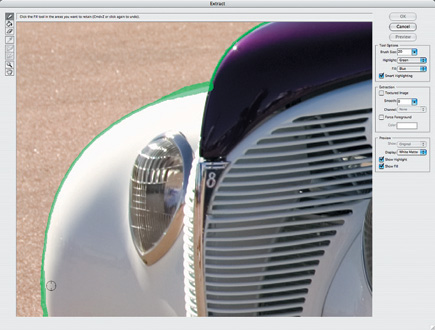
4. Once the background was in good shape, it's time to work on the foreground. Photoshop CS Extract command (Filter>Extract) launches a dialog box giving you all the tools needed, but here's a few tips that might make the process less stressful. The first step is outlining the car using the Highlighter tool. Unless you're good at freehand drawing I suggest you click the Smart Highlighting check box to guide the tool along areas of varying color or contrast. It's also a good idea to work on an enlarged section of the image and trace its outline with a small brush using short easy strokes. (It's easier to undo mistakes this way.) I used my mouse to outline the car's edges, but you can choose whatever kind of pointing device works for you. When you're done outlining, select the Paint Bucket tool and click the middle of the outlined subject to fill it with color. Your car--or whatever--is now selected.
 |
|
|
5. When you click the Extract button, the car is removed from its background. This process is seldom perfect (for me anyway) so use the Eraser tool to clean up extraneous background bits and pieces that might have come along for the ride. At this point I noticed my next challenge: My original photograph did not include the car's entire shadow, so I would need some creative artwork to make the shadow whole. But first put the car on a separate layer. Using the Magic Wand tool I selected the hot rod, then placed it on its own layer using Command-J (CTRL-J on Windows). This last step may be redundant, but like my dad, I guess I'm a "belt and suspenders" kind of guy.
 |
|
|
6. With background and foreground image windows open, drag the car layer on top of the background. This automatically places the car on a new layer atop the background image. Next, use that layer's "handles"--be sure "Show Bounding Box" is clicked in the Options bar--to re-size and even rotate the car slightly to place it in a realistic position. Make this step easier by lowering the top layer's Opacity and see through the car onto the background while making these adjustments.
 |
|
|
| |||||||||
|

| ||||||||

















 FEATURED VIDEO


Get the Latest Photo Tips, News & Reviews from Shutterbug!






| Camera Reviews Other Reviews | |
Mobile Reviews Photography Reviews Columns | |
News | |
Features | |
How-To | |
Resources |
 © 2026 Shutterbug
AVTech Media Americas Inc., USA
All rights reserved