


- REVIEWS
Camera Reviews 
More Reviews Mobile Reviews Photography Reviews - GALLERIES
- VIDEOS
- BUYER'S GUIDES
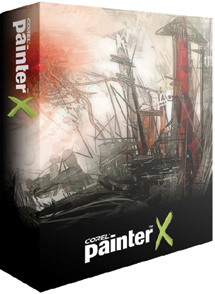
Corel’s Painter X; Photo Transformation
 Compatible
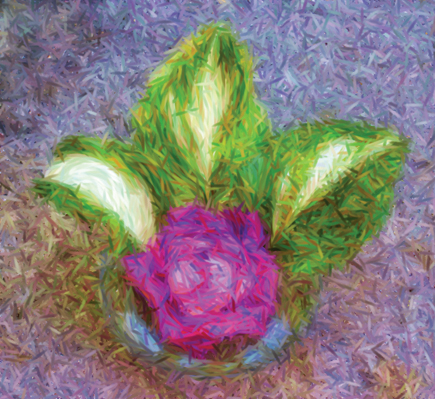
with both Mac and Windows, Corel's new Painter X can transform your portrait,
landscape, and still life photos into images that emulate oil paint on canvas,
charcoal on textured art paper, woodcut, silkscreen, watercolor, pastel, pencil
drawing, mosaic tile, and scores of other natural art media. You can start by
enlisting Version X's enhanced automatic commands to create specific art
effects, or, with a bit of practice, you can trace and paint over your original
photos with "digital natural media."
Compatible
with both Mac and Windows, Corel's new Painter X can transform your portrait,
landscape, and still life photos into images that emulate oil paint on canvas,
charcoal on textured art paper, woodcut, silkscreen, watercolor, pastel, pencil
drawing, mosaic tile, and scores of other natural art media. You can start by
enlisting Version X's enhanced automatic commands to create specific art
effects, or, with a bit of practice, you can trace and paint over your original
photos with "digital natural media."
You can use your photo as a background and trace over it with digital pen,
pencil, brush, watercolor, crayon, chalk--any of scores of different media.
Then you can remove the original photo entirely, or blend it with the effects.
Painter X offers a combination of some 900 brushes with 30 different media,
plus a huge library of 600 paper and canvas surfaces, all of which offer tremendous
depth and versatility.
Space precludes me from delving further into the thousands of combinations of
natural media that Painter X emulates so well. Go to the Corel website to download
a free trial, a wealth of information, and tutorials. At press time, the full
version was $394 from Corel, but the upgrade price of $199 is available if you
own Painter, Painter Classic, Photoshop Elements, Photoshop CS, or some other
programs. If you want to digitally draw or paint from your photos to create
images that really look like they were made with traditional art media, Painter
X offers you the widest range of options with the greatest depth and versatility.
 |
|
|
|
 |
|
|
|
 |
|
|
|
 |
|
|
|
 |
|
|
|
 |
|
|
|
 |
|
|
|
 |
|
|
|
 |
|
|
Consider A Pen Tablet
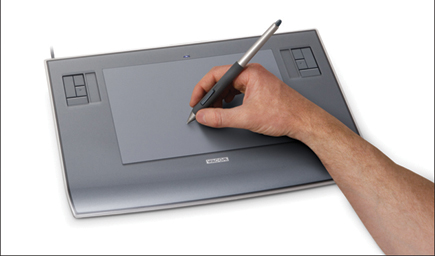
If you're serious about working with Painter, or you often make selections
or do a lot of retouching in Photoshop, you should consider getting a graphic
tablet. This is a plastic slate with a work area from 4x5" up and a cordless
lightweight pen. You connect the tablet to your Mac or PC via a USB cable and
draw on the tablet with the pen. Most professional artists and photo retouchers
work with one of these tablets. Why? Because doing fine work with a mouse is
about as precise as drawing with a bar of soap.
 |
|
|
Furthermore, in programs like Painter and Photoshop, the tablet is sensitive to the pressure and angle of the pen, just like drawing or painting with real art media. If you press harder, you see a broader stroke, and the appearance of the brush stroke changes with the angle of the pen. With a pen and tablet, brush effects are more realistic, it's easier to draw a selection, retouch small areas, and trace a photo or other artwork that you can lay on top of the tablet. Moreover, using a pen instead of a mouse helps prevent repetitive stress problems.
| |||||||||
|

| ||||||||


 FEATURED VIDEO


Get the Latest Photo Tips, News & Reviews from Shutterbug!






| Camera Reviews Other Reviews | |
Mobile Reviews Photography Reviews Columns | |
News | |
Features | |
How-To | |
Resources |
 © 2026 Shutterbug
AVTech Media Americas Inc., USA
All rights reserved