


- REVIEWS
Camera Reviews 
More Reviews Mobile Reviews Photography Reviews - GALLERIES
- VIDEOS
- BUYER'S GUIDES
Vivid Details Test Strip 2.0 Photoshop Plug-In
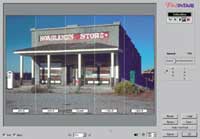
If you have ever used a darkroom to make photographic prints it is likely you have also used a test strip to determine the ideal exposure to make your final exposure. That method, of making a sequence of increasing overlapped exposures on a strip of photographic printing paper to discover the correct printing time, is the inspiration for Vivid Details Test Strip 2.0 Photoshop Plug-In. Essentially it is a visual on-screen and digital print output adaptation of the darkroom test strip method for determining the ideal adjustment of a digital graphic image open in Photoshop. Test Strip 2.0's usefulness however extends beyond just the determination of the correct "exposure" to result in a desired range of print densities. It provides on-screen visual comparisons for color balance, brightness, contrast, and color saturation. In addition, it supports making adjustments to each of these dimensions of quality consecutively and cumulatively, and then provides a before and after split-screen comparison. Finally at each of these five stages of adjustment, Test Strip 2.0 supports making a print of what you see on-screen. This function allows making adjustments precisely for ideal print output, and essentially provides a practical means to calibrate your printer to produce the output quality you desire personally. An information/instruction sheet illustrating how to use Test Strip to calibrate print output to match on-screen image appearance is included in the package. |
|||
Using Vivid Details
Test Strip 2.0. First off, installing Test Strip 2.0 is automatic,
with one possible exception for Windows users. That is, if you have installed
Photoshop on a drive other than "C," or in an unconventional
folder, then you will need to use the Browser tab in the installation
dialog to locate the Photoshop/Plug-Ins folder. Once installed Vivid Details
is listed on the bottom of the Photoshop filter menu. Just select it,
then Test Strip, and the Test Strip 2.0 dialog window appears displaying
the current image open in Photoshop. The opening screen, in default mode,
provides a nine-around set of mini-images with the "current"
image in the center, surrounded by lighter and darker, as well as six
color balance variations. The degree of variation in percent, as well
as the color variant positions are adjustable. By clicking on any of the
eight alternates in the ring, that amount of change is applied. In addition
there are four more Test Strip selection windows, each of which can be
configured differently to suit individual taste. I personally found the
fourth, Color Saturation, most useful in making print adjustment evaluations,
as saturation is the most difficult value to judge perceptually on the
basis of screen appearance for digital print output purposes. |

| ||
|
||
- Log in or register to post comments








 FEATURED VIDEO


Get the Latest Photo Tips, News & Reviews from Shutterbug!






| Camera Reviews Other Reviews | |
Mobile Reviews Photography Reviews Columns | |
News | |
Features | |
How-To | |
Resources |
 © 2024 Shutterbug
AVTech Media Americas Inc., USA
All rights reserved