| |
The
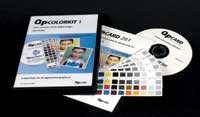
QPcolorkit 1 package includes five QPcard 201 color targets,
Owners Manual, and a Mac and Windows CD-ROM.
Photos © 2003, Jay Abend, All Rights Reserved
|
|
As more and more photographers
are going partially or even totally digital, we're all starting
to learn the elements that make for a great image. At first we're
all wrapped up in pixel count, lens sharpness, zoom range, and battery
life. After a few dozen ho-hum images it becomes painfully obvious that
a great color photograph is often more about contrast and color balance
than anything else.
While all modern digital cameras feature fairly sophisticated auto white
balance circuitry as well as a menu of preset white balance settings,
every device has its own color signature. Even if you're very,
very careful about creating well-balanced photographs with your digital
camera, you'll always be stuck with your particular camera's
color sense. Some are cool, some are warm, some are hard, and some are
flat.
Customized Camera
Profiles
One of the great pro tricks is to have a custom profile created for
your camera. Now when images are opened in Photoshop or another suitable
image editor, the profile can be applied and the resulting image should
be fairly "neutral." This works great for the controlled
conditions of the original calibration image, but what about all of
the different lighting situations that a typical photographer encounters?
|
| |
My
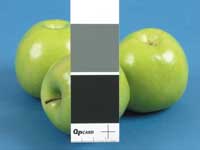
"never leave them at home" accessory--the
QPcard 101 gray cards. I've used these for a while
to create a good neutral color balance on all of my assignment
work.
|
|
Manual White Balance
As I've written in the past, I religiously shoot all of my digital
cameras, even my little Olympus and Fuji point-and-shoots, in manual white
balance mode. In general I tend to use daylight balance a lot and try
to include an established gray reference card in the first image of every
scene. This gives me a way to create a neutral gray balance when I'm
color correcting, and once you have a good gray you're halfway there.
I've fallen for these slick little cards from QPcard, a very clever
Swedish company located in Gothenburg. Like all good gray cards, the QPcard
101 cards do not use offset printing, but rather their white, gray, and
black patches are solid custom mixed pigment, and the little 15 packs
of self-stick calibration targets are always with me whenever I shoot.
Repeatable Results
Now, of course, a consistent reference card is great, but it does not
create any sort of a repeatable profile to correct a batch of images.
Sure, I create a custom levels setting and use Photoshop's batch
feature to apply the correct color settings, but without a full color
calibration target and the ability to color correct the entire spectrum
of colors, I'm only fixing some of the image.
|
| |
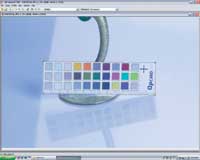
Here is the card photographed within a scene. As you can
see, the outline of the card I traced shows me where the
color patches fall in relation to the pre-marked squares.
Once this is done it's a one-click matter to create
a reusable profile.
|
|
There are any number of very
elaborate and expensive ways to create a calibration file at the beginning
of each session, the best conceived one being Kodak's brilliant
calibration routine for the DCS Pro Back series of camera backs. Shoot
a standard Macbeth ColorChecker, open the file in Kodak's Camera
Manager software, create a calibration file and you're all set.
There is nothing as simple and elegant as that available for non-Kodak
cameras, but I recently learned that QPcard has released a very nice and
inexpensive method to create a repeatable color correction profile.
The QPcolorkit 1
The QPcolorkit 1 arrives in a standard DVD case, with a sleeve of five
color reference targets, a dual platform, Windows XP and Mac OS X compatible
install disk, a very brief Owners Manual, and an install serial number.
The cards themselves are what set this system apart. Like the famed Macbeth
ColorChecker, each card presents a range of fixed, calibrated color samples.
Since the colors are actual pigmented ink prints rather than CMYK process
color images, you're assured of perfect, repeatable colors. The
30 color patches run the gamut from white through the typical range of
colors, including typical grass, blue sky, Caucasian flesh, and then solid
black. As with the little QPcard gray cards, there is a clear plastic
piece on the back--peeling it reveals a multi-use adhesive patch,
similar to a stickier Post-it Note.
|
| |
Here
is the image as it was shot. I switched to tungsten light
balance on purpose to create a very poorly color balanced
original image.
|
|
I have to say that I love this
size, and I love the fact that the $150 kit includes five of them. Since
I have a mini version of another color chart (that had no software with
it) that set me back $80, it's sort of a bargain. (And QPcard sells
replacement packs of five cards.) I have mounted one card to a like-sized
piece of black cardboard, and I keep it wrapped in an old lens tissue
sleeve. This card is always in my camera bag. I keep another one around
the studio, where it sticks easily to tabletop product shots and is easily
hand holdable by models.
Check The CD For The
PDF
On the CD you'll find a PDF of a more complete instruction manual.
A thorough read through reveals the major shortcoming of this inexpensive
system. Unlike the more expensive and professional packages, QPcolorkit
1 is not capable of creating color profiles that are usable system wide,
on either platform. The color profile is strictly usable within the QPcolorsoft
501 software. Forget about creating custom Photoshop profiles for your
digital camera--not with QPcolorkit 1. In addition, the slick QPcolorsoft
501 software is not usable with any camera's raw image format which
seems like an odd contradiction. If you're serious enough to use
a system like this then it seems that you're also serious enough
to shoot in your camera's raw mode. Oh well, it's simple enough
to either shoot in JPEG or simply create a batch process of all of your
raw files in "As Shot" mode.
|
| |
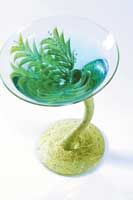
Here is my best attempt at color balancing using the simple
tools in Photoshop. If you think that a standard white or
gray balance can fix an image like this, well here's
your answer. Notice how flat and desaturated the gold base
of this hand-painted glass looks.
|
|
Some Extra Steps Needed
With the noted limitations in mind it's still clear that a really
good way to create neutral, realistic, and repeatable color is well worth
the few extra steps needed. In order to fit this product into my digital
workflow I set up a small test shoot. To really see if tough color corrections
could be effected, I broke into the middle of a product shoot I was doing
for a client and set my Canon EOS-1Ds camera to Tungsten White Balance,
even though we were shooting with 5600K strobes. The resulting images
would be terribly blue, and bringing the color back is nearly impossible
without some very intricate color channel tweaks. Wouldn't it be
great, I thought, if the QPcolorsoft 501 software could just magically
fix the problem?
Once I had everything set up I put one of the QPcard 201 targets into
the scene and took a standard exposure, then I removed the card and shot
normally. Back at the computer I had Phase One's Capture One raw
conversion software take the raw files, and using the default settings,
create workable 8-bit TIFF files. Now I was sure that the target image
and the files that followed would all have the exact same uncorrected
color balance.
The next step was to start with the target image and create a color profile.
I used the QPcolorsoft 501 software on a Windows XP machine and a Mac
G4 running OS 10.2, and on both platforms it is extremely fast to open
images. Once the target image is open you need to create an outline of
the target in the image. QPcolorsoft 501 doesn't care if the image
is lined up squarely or not, which is nice, but if your card is a bit
out of alignment you'll need to do some monkeying with the dimensions
of your card outline to try and get the color patches to line up. QPcolorsoft
501 even has a provision for cards that are shot upside down.
|
| |
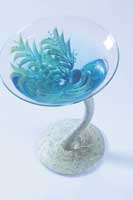
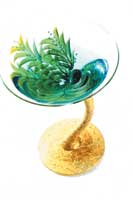
Here
is the QPcolorsoft 501 conversion. Sure, the whites and
neutrals are proper, but look how rich the colors are!
|
|
Once you have the card accurately
outlined, it's simply a matter of clicking on "Create Profile."
You then name your profile and save it to a folder of your choice. Once
you create a profile the image on screen is converted by clicking "Convert
Image." The color conversion, once the profile is applied, is certainly
radical enough to a poorly balanced uncorrected image, but is it really
more accurate than just using "Auto" in Photoshop Levels or
clicking on a neutral gray patch?
My tungsten-balanced sample is a fairly good test. The image out of the
camera is terribly blue with almost no red channel saturation. The QPcolorsoft
501 corrected image gets us a neutral image all right, but what is so
amazing is the purity of the colors in the image. I took the same image
and used Photoshop's white and gray balance tools to try and get
a comparable result. Sure, I could turn the background white and remove
the strong blue color balance, but I could not restore the natural color
balance to the scene. If you look at the QPcolorsoft 501 corrected version
you'll notice that the green of the painted leaves is back, the
rich gold gilt painting on the stem of the glass is vibrant, and the overall
image has a much more realistic look. Very impressive.
|
| |
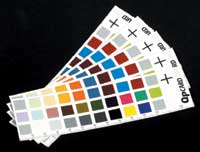
Five
QPcard 201 targets come with the QPcolorkit 1 package, and
QPcard sells replacement packs of five cards. Don't
confuse these with cheap offset printed or photo paper targets--these
are genuine pigmented ink targets and present accurate,
repeatable color patches.
|
|
Batch Processing
Of course, if you had to do this type of thing for every image you'd
be in big trouble, so QPcolorsoft 501's "Batch" utility
is particularly nice, and extremely brisk. Unfortunately, QPcolorsoft
501 does not embed a color profile into the image, which will still retain
the color profile used by your capture device. Regardless, there is no
other package on the market right now that offers this level of true color
correction at this price point. For most photographers the process of
creating a calibration file is a pain and, frankly, a bit of overkill.
But for serious shooters, it's not too much to simply create a half
dozen or so "test" shots in different color conditions and
create named profiles like "Daylight," "Tungsten,"
etc.
This requires you to religiously shoot with your camera locked to one
color balance mode, but does give you the best way to create very repeatable
color. I have created two profiles, one that matches the Balcar flash
heads on my tabletop setup on one side of my studio, and another to match
the newer Balcar Nexus heads on the other side of the studio. While I
still tend to shoot in raw and use Phase One's excellent (but pricey!)
Capture One software to create natural color, the QPcolorkit 1 package
does a beautiful job when I'd rather shoot in JPEG mode.
While it requires a certain level of commitment from the photographer,
a tool like QPcard's $150 QPcolorkit 1 package goes a long way to
creating a closed-loop system--output color matching the real world.
While it does not create a profile usable in any other software and does
nothing for the confusing world of matching color monitors to color printers,
it does an excellent job of creating really pure, realistic color from
any digital camera. When you consider the five neat color targets and
the CD with cross-platform software, I think you'll find this kit
showing up in a fair number of serious photographers' bags.
For more information about the QPcolorkit 1, visit Argraph Digital Imaging's
website at www.adi-digital.com.
|