Further Information
Ulead CD & DVD PictureShow 3 Deluxe
http://www.ulead.com
Finding a convenient way to share your photos with others is often a challenge.
Printing extra copies of your images gets expensive, and building web pages
to share your images can be a time consuming task. Ulead CD & DVD PictureShow
3 Deluxe solves this problem by providing an efficient new way to share your
photos: burning them to a CD and then displaying them using a DVD player and
TV.
When I tell people about this technology, I'm frequently asked two questions:
"Does this require a DVD burner?" and "Do I need an expensive
DVD player to view the CD?" The answer to both questions is "No."
The CD can be burned using any typical computer CD burner, and the technology
to play computer burned CDs is available on just about every DVD player made
within the last 5 years, regardless of how much (or how little) it cost.
There are several CD\DVD software packages available in today's market.
What I like most about Ulead's package, is that it easily creates professional
DVD quality results, complete with music, transitions, and menus, at an affordable
price. The MSRP is $49.99, and a free trial is available via download from www.ulead.com/dps/.
Step 1: Organizing Your Photos
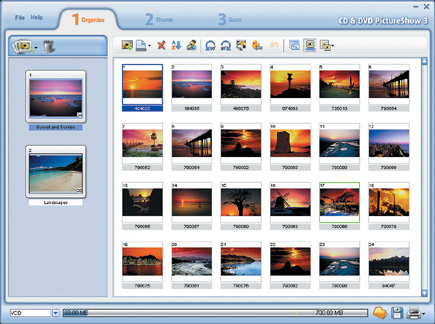
Ulead CD & DVD PictureShow uses a three step interface that walks you through
the entire process of creating a slide show (see #1). The first thing you'll
need to do is start a new project by clicking the New Slide Show button (located
right underneath the File menu) and then clicking "New Photo Slide Show."
The "Add Photos" dialog box opens, which is used to select the photos
that you'd like to use in your slide show. You can add photos from anywhere
on your computer, and/or use the New Slide Show button to access photos directly
from your digital camera, by clicking "Get from Digital Camera."
Step 2: Adding Features Using The Theme Tab
The Theme Tab is used to add a background theme to your slide show, and to determine
how features such as background music and transitions will operate. When you
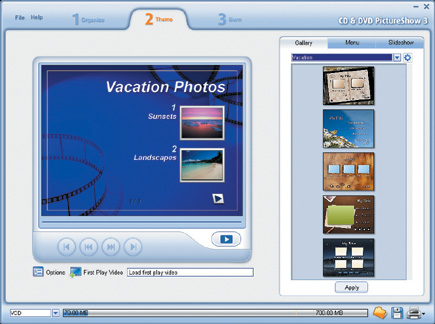
click on the Theme Tab, a preview of your slide show will appear on the left,
and a menu will appear on the right (see #3).
Step 3: Burning Your Slide Show To CD Or DVD
This is the easiest step, since your CD or DVD burner and CPU do all of the
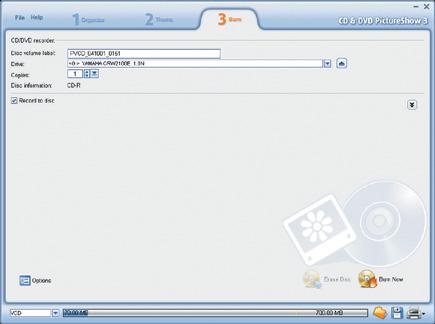
work. Click on the Burn Tab to set options for burning your slide show (see
#6). If you have more than one CD and/or DVD burner, select which burner you'd
like to use from the drop-down box. If your computer has just one burner, it
will be selected automatically.
Additional Features: Printing A CD Label And Using Ulead Photo
Explorer 8.5
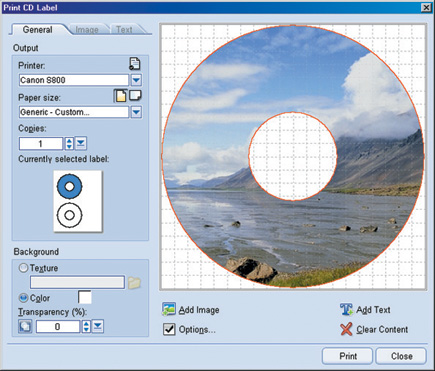
If you'd like to print an attractive label for your CD or DVD, you can
do so by clicking the Printer icon on the lower right side of the screen. You
can select from a wide variety of name brand CD and DVD labels, or choose the
"Generic" option. You can then click on "Image" to add
an image to label, and click "Text" to add Text to the label (see
#7).
 |
1
The PictureShow Interface with the Organize Tab selected.
|
|
Every
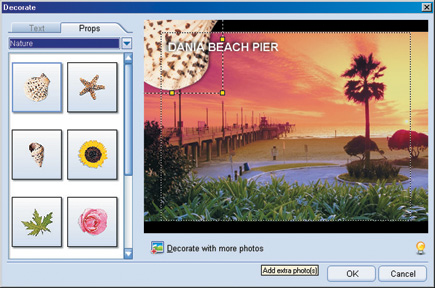
picture in your slide show can have text and props added to it
by double clicking on the photo's thumbnail (see #2). You
can rearrange where photos appear in your slide show by dragging
and dropping their thumbnails. You can also use the Auto Enhance
button, located near the top center of the interface, to automatically
balance the brightness and contrast in any selected photo(s).
|
|
 |
2
Adding text and props to your photos.
|
|
By
default, Ulead CD & DVD PictureShow will burn your slide show
to the DVD format, since this allows for up to 8.5GB of slide
show photos to be stored on a single disk. However, since most
computers do not ship with DVD burners, you'll likely want
to switch to a CD format, by clicking the Output Format drop-down
box in the lower left corner of your screen. There are 2 CD based
formats available: VCD and SVCD. VCD enables storing more photos
in a slide show, while SVCD enables higher photo quality. You
can check the amount of available space on your CD or DVD via
the Capacity Bar at the bottom of the interface. In most cases,
SVCD is the best option to use, but you can switch to VCD if you
need to squeeze more photos onto your CD.
Note that you're not limited to a single slide show per
CD or DVD disk. You can add additional slide shows in the same
way as you added your original slide show (by clicking the New
Slide Show button, and then clicking New Photo Slide Show). Each
slide show will be represented by a thumbnail on the CD or DVD's
main menu. By default, the first image in the slide show will
be used as the thumbnail image. However, you can set any image
in the show as the thumbnail image by right clicking on the image
and then clicking "Set as Slide Show Thumbnail." When
playing back your CD, you can select which slide show to view
in the same way that you would select a scene in a professional
DVD: by clicking a number on your DVD's remote control.
Before moving on to the next step, it's a good idea to save
your current slide show project by clicking the Save button (the
second button in the lower right side of the display). Next, click
on the Theme Tab at the top of the page, to add features to your
slide show.
|
|
 |
3
Adding features in the PictureShow Theme Tab.
|
|
The
first thing you'll want to do is to select a background
for your slide show. Backgrounds are selected from a list of categories
such as Holidays, Sports, and Vacations. When you've decided
on a background, click the Apply button to add the background
to the preview on the left of the screen. The background will
load with a default title and captions near each slide show thumbnail,
you can edit the captions, along with the text font and color,
by right clicking on any text object. Default music that fits
your theme is added along with the background. You can use the
Menu button to access any image on your computer and use it as
a background image, and to change the music selection.
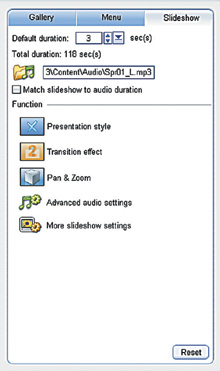
The Theme Tab also contains the Slide Show menu, which is used
to control various playback aspects of your show (see #4). The
first option is to set how long each image will be displayed.
You can set the slide show speed to exactly match the length of
your audio file by clicking the checkbox labeled "Match
Slide Show to Audio Duration."
By default, images are displayed surrounded by a black background.
The Presentations Style button is used to replace the default
background with an attractive frame. Clicking on the Presentations
Style button opens a pop up menu, with presentation frames grouped
by category. You can also choose to replace the black background
with a different color or texture by clicking "More Slide
Show Settings."
|
|
|
4
The slide show Menu is used to control aspects such as transitions
and presentation style.
|
|
Although
you can choose to allow each picture to simply be replaced by
the next picture, you can control how this change occurs by using
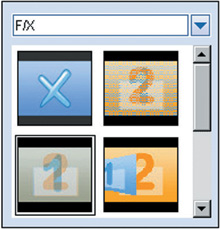
the Transitions button. Clicking the button opens a pop up menu
with animated demos showing how each effect works, will appear
(see #5). Transitions can be a nice way of adding a professional
touch to your slide show presentation. There are dozens of transition
styles available, ranging from traditional fades to mosaics and
3D effects.
|
|
|
5
The Transition Pop-Up Menu.
|
|
In
addition to Transition Effects, you can also add Pan and Zoom
effects to each image. While Transition Effects occur as the display
moves from one image the next, Pan and Zoom effects occur while
each image is being displayed. As with Transition Effects, there's
a large sample of Pan and Zoom effects to choose from.
You can also use the Theme Tab to add additional audio data to
your show. Click on the Advanced Audio button to access these
options. From the Advanced dialog, you can add a series of audio
files instead of a single file, or you can record a voice narration
to play along with your slide show.
One of the features that I like most about Ulead's CD &
DVD PictureShow is that you can preview the entire show exactly
as it will appear on a DVD player by clicking the Play button
on the preview screen. The Play button will be replaced with a
series of buttons that simulate a DVD player's remote control.
You can use these buttons to navigate inside your show and confirm
that everything works exactly as you planned.
|
|
 |
6
The PictureShow Burn Tab.
|
|
Make
certain that the "Burn to Disc" option is checked,
and you're ready to begin the burning process. The Burn
button is located near the lower right corner of the screen.
|
|
 |
7
Creating a label for your CD or DVD disk.
|
|
There
are a couple additional options available for creating a more
artistic label. The Transparency button is used to make your text
semitransparent, allowing the image under the text to be partially
visible. The Wrap Text button is used to convert horizontal text
into circular text that wraps around your label.
Ulead Photo Explorer 8.5 is included as a free bonus item with
Ulead CD & DVD PictureShow 3 Deluxe. Photo Explorer has always
been a convenient tool for displaying a thumbnail view of your
files and folders, but this newest version of Photo Explorer has
some powerful new options.
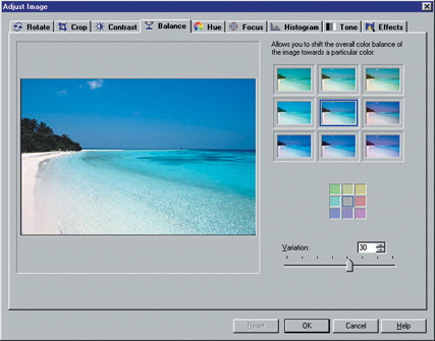
Photo Explorer can now be used as a basic image editor for performing
corrections on and adding effects to your photos (see #8). It's
not designed to be a full featured photo editor like Adobe Photoshop
or Ulead PhotoImpact, but it can be a very convenient tool to
have available for when you need to make routine adjustments to
your photos before using them in CD & DVD PictureShow.
|
|
 |
8
Performing common image adjustments in Ulead Photo Explorer 8.5.
|
|
Tony Celeste appreciates feedback from his readers. You may contact him at
aceleste@comcast.net.