


- REVIEWS
Camera Reviews 
More Reviews Mobile Reviews Photography Reviews - GALLERIES
- VIDEOS
- BUYER'S GUIDES

Web Lesson
Portrait Mode--For Floral Photography
Camera: Casio EXP-600,
zoom lens set at 28mm
Setting: Portrait mode
Menu Modifications: High Color Saturation, Soft Sharpness,
Normal Contrast
Software: Adobe Elements 2
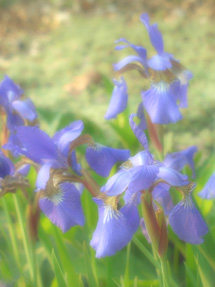
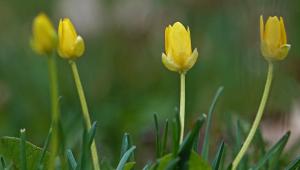
1) Here's the photo right out of the camera. The softness is a result of setting the Scene mode at Portrait (which softened the background) and the image characteristic in the Sharpness menu to Soft.
 |
 |
||
|
|
2) I used an Adjustment Layer to darken the overall photo (2). I chose Levels (3) with a Multiply Blending mode (4) and then moved the midpoint levels adjustment slider in toward the black point. Multiply Blending mode, in essence, doubles the exposure on the picture.
 |
|
|
 |
|
|
3) I liked the effect
but wanted to add another graphic element to the scene, so in Filters I chose
Add Noise (5) and moved the slider until I liked the effect.
4) Here's the final. (6)
 |
 |
||
|
|
Want to work on this image yourself? Just right click to copy it and paste it.
Want to try out Elements? Check the Adobe website (www.adobe.com) for a trial.
Want to learn more about the Casio EXP-600? Check out our full report in our archives (http://www.shutterbug.net/features/0904sb_firstlook) or visit the Casio web site at www.casio.com.
| ||
|
||
- Log in or register to post comments































 FEATURED VIDEO



Get the Latest Photo Tips, News & Reviews from Shutterbug!






| Camera Reviews Other Reviews | |
Mobile Reviews Photography Reviews Columns | |
News | |
Features | |
How-To | |
Resources |
 © 2024 Shutterbug
AVTech Media Americas Inc., USA
All rights reserved