| |
Photos
© 2003, Howard Millard, All Rights Reserved
|
|
Are you looking for a way
to make your digital photos really stand out? Starting with one of your
existing color shots, here's a great way to create a dynamic new
image that will really catch your viewer's eye. By combining a
black and white image with spots of color, you'll add compelling
contrasts and visual drama. Here's how to do it in just 10 steps.
1. Open your color photo, in Adobe Photoshop Elements
2, or other image-editing programs.
2. From the Menu bar across the top of the screen,
choose Layer>Duplicate Layer. This adds a new "Background copy"
layer above your original Background layer.
3. Now, Choose Layer>New Adjustment Layer>Hue/Saturation.
We'll use this adjustment layer to remove color.
|
| |
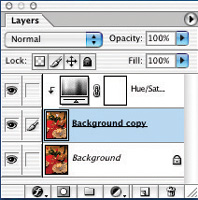
To
remove color, I added a Background copy layer and then grouped
a Hue/Saturation adjustment layer with it. In the Hue/Saturation
dialog, I ticked both the Colorize and Preview check boxes
at the lower right, then moved the Saturation slider all
the way to the left. This drains the color from the copy
layer so it is now black and white only.
|
|
4. In the
Hue/Saturation dialog, tick both the Colorize and Preview check boxes
at the lower right, then move the Saturation slider all the way to the
left. As you do, you'll see that all the color is drained from your
picture. It's now black and white only.
5. Choose Layer>Group with Previous so that the color
is removed only from the Background copy layer.
6. Click on the tab for the Layers palette to open it.
Then, click on the "Background copy" layer to make it the
active layer.
7. Next, select the Eraser from the toolbox and choose
a size and opacity from the options bar at the top of the screen. Use
a small eraser brush for fine details, a larger brush for broad areas.
You can change the brush size by pressing the left and right bracket keys,
"[" and "]". Pressing the left bracket key makes
the brush smaller while pressing the right bracket key makes it larger.
For details, zoom in on an area and use a small brush.
|
| |
Clicking
on the lab for the Layers palette will open it. Then, I
clicked on the Background copy layer to activate it, as
shown here.
|
|
8. Now, we're
going to selectively erase parts of the black and white "Background
copy" layer so that the color from the original image--the
Background in the Layers palette--shows through. The opacity determines
how strong the eraser effect is. For more subtle color, and to work in
stages, use a lower opacity setting, such as 30-50 percent. For the brightest
color to show through with one pass of the eraser brush, use 100 percent.
I recommend using a lower setting and building up color gradually, in
steps, by brushing over an area more than once when you want brighter
color. If you make a mistake, use Undo and try again. For multiple undos,
use the History palette in Photoshop, the Undo History palette in Elements.
9. Pick only a few key elements to color, with strong
or readily identifiable shapes. That way, they will clearly stand out
against the monochrome background. Furthermore, think about composition
and whether you want a bit of color in only one area, or in several areas.
You can create either balance or dynamic tension. Also, consider whether
your image works best with bright or subtle color.
|
| |
Using
the eraser tool on selected areas of the Background copy
layer allows the color from the original image (Background
layer) to selectively show through. I chose to selectively
color only the two roses and the gilt cover of the menu.
|
|
10. When you're
satisfied with your work, save two copies of it. Save one in the native
Photoshop and Elements .psd format, which preserves layers, in case you
want to make changes later. For printing or use on the web, make a duplicate
(Image>Duplicate) and flatten it, Layer>Flatten Image, then save
it with a different name so you know which copy has layers and which does
not.
When printing these selectively tinted images, I like to use a heavy fine
art digital photo paper, such as the lightly textured Classic Velour from
Luminos. Using the setting for Matte Paper Heavyweight on my Epson 1280
and 2200 printers, the result is a rich fine art print with quite accurate
color.
Now, in 10 relatively easy steps, you've created a selectively colored
photo, adding a totally new mood to your image and creating a striking
new look.
|
| |
This
original was shot in the studio on 35mm slide film, then
scanned on the Minolta DiMAGE Scan Elite 5400. Model: Heidi
McAllister.
|
|
|
| |
Using
the technique described in the text, I used the Eraser tool
at about 30 percent opacity to create a soft and subtle
hand-tinted look. Model: Heidi McAllister.
|
|
|
| |
My
original 35mm slide shot in the studio was scanned on the
Minolta DiMAGE Scan Elite 5400. Model: Alyson Radding.
|
|
|
| |
Using
the technique described in the text, I first removed all
color from the photo. Then I "erased" it back
in only the mirror area, making several passes with a 50
percent opacity brush for saturated color. Model: Alyson
Radding.
|
|
|