| |
When
critical focus is important, I'll never rely on
the AF system to automatically set focus for the most
important subject area. With this llama, the AF system
always focused on the tip of the snout--instead
of the eye--until I used the technique described
in the text to achieve the desired results. (Canon EOS
D60; ISO 100; fill flash; Unsharp Mask applied in Photoshop.)
Photos © 2002, Peter K. Burian, All Rights Reserved
|
|
All too often, friends with
a new digital camera complain that they cannot get sharp pictures. Their
images look fine on a computer monitor, but they're not tack sharp
when printed in 8x10" size. Frankly, any of today's better
3 or 4-megapixel cameras should produce images that will make for a
very crisp and snappy print. If you're not fully satisfied with
your own results, read on. With the right techniques and settings, you
can improve your success ratio of technically excellent images.
Use The Right Shooting
Techniques
Whenever shooting with the camera handheld, our natural body tremors
create shake that can produce unsharp images: blurred because the camera
was not perfectly steady. For sharper pictures, hold the camera steady,
with two hands, and use the proper stance: legs spread to a comfortable
distance, elbows tucked in close to your body, and camera pressed against
your cheek or forehead. Holding the camera away from your body is a
recipe for blurry pictures, so avoid using the LCD monitor for composing
your images. If you must use the monitor, select the ISO 200 setting
for faster shutter speeds to reduce the effect of camera shake.
|
| |
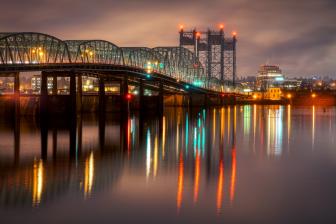
In
JPEG capture mode, most digital cameras produce the best
resolution and sharpness when you select the highest quality/lowest
compression settings. You'll need some high capacity
memory cards to hold all of the large image files, but
the price of these accessories has dropped to an affordable
level. (Nikon Coolpix 5000; Fine/Large JPEG capture mode;
Hoya super multi-coated polarizer; Unsharp Mask applied
in Photoshop.)
|
|
In very low light, when flash
is not practical--inside a cathedral, for example--use a very
rigid tabletop tripod as a firm support for the camera. For nearby subjects,
use flash to help "freeze" any slight camera shake and produce
better fine delineation of your subject. Flash can also be useful to stop
motion if a nearby subject is moving slightly.
Avoid High ISO Settings
When you want fast shutter speeds--to freeze any blurring from camera
shake or subject motion--you may decide to set ISO 400. This may
produce sharper pictures, but overall image quality will suffer. Try some
test shots with your own camera at each of the available ISO settings.
You'll probably find that the high ISO settings produce a lot of
digital artifacts, lower resolution, and less clearly defined details.
Unless your camera is an exception to this general rule, stick with the
lower ISO levels unless there is no other way to get a sharp picture in
low light.
Use The Right Focusing
Technique
Many cameras include a wide focus detection zone, or several focus points
across the viewfinder. That feature is great for quick shooting with an
off-center subject. But it can make it difficult to set focus on an important
area: a person's eye, for example. For pinpoint accuracy, switch
to a single focus sensor if your camera offers that option. Point the
lens at the desired area and set focus with slight pressure on the shutter
release and wait for the focus confirmation lamp in the viewfinder or
the LCD monitor. While recomposing to take the final picture--using
the proper camera holding technique--keep focus locked with light
pressure on the camera's shutter release button.
|
| |
Even
cameras with a zoom lens of superb optical quality will
produce flare in certain conditions: extremely bright
backlighting, in this case. To minimize or prevent this
problem, try some of the techniques discussed in the
text.
|
|
Use The Best JPEG
Options
Most cameras include several options for JPEG image quality and for
JPEG compression. Select the highest quality level --employing
the most pixels--often called "Super Fine" or "Fine."
Then select the "Large" setting, to make image files with
a very low rate of compression. If your camera offers only a few image
quality options--Best, Better, and Good, for example--select
the best setting. While the large files take up a lot of space on your
memory card, they also offer the best resolution and the most impressive
definition of fine detail.
It may be tempting to use the "Small" option to maximize
the number of images that your memory card will hold. Unless your cards
are almost full, avoid that temptation, because the very high compression
rate will degrade apparent sharpness and introduce digital artifacts.
Buy a high capacity memory card instead and use the best image recording
options. If your camera offers a RAW or TIFF recording mode, try one
of those for superlative image quality in large prints. While image
recording time may be long, some subjects are so important that you'll
happily wait an extra 15 to 30 seconds.
|
| |
While other technical and creative aspects are important
too, most pictures benefit from high sharpness and great
definition of intricate detail. There's no need
to spend over $2000 for a digital SLR camera if you want
to make sharper images. Simply use a camera with a high
quality lens plus the right shooting techniques and settings,
and make sharpness adjustments in image editing software.
(Sony DSC F-707; Unsharp Mask applied in Photoshop.)
|
|
Shade The Lens
On sunny days, stray light can strike the lens and produce flare: a bright
haze effect that degrades contrast and apparent sharpness. If your digicam
accepts a lens hood accessory--or a tube that's intended for
mounting filters--order one and use it on sunny days. Avoid strong
backlighting and sidelighting by changing your shooting position. Or move
around until you find a tree, a branch, or a building that casts a shadow;
use that to shade the lens. You can also ask a friend to hold a cap close
to your lens so it casts a shadow on the front element.
Insist On High Optical
Quality
A $600 camera with 3x optical zoom will usually include a better lens
than a $249 model. If you're serious about digital photography,
do some research about the quality of the lens in the cameras that you're
considering. As a start, look for models with "aspheric" or
"low dispersion" glass. If your camera accepts filters, you
may want to buy a polarizer. This accessory is great for enriching blue
skies and for wiping glare from reflective surfaces--buildings, foliage,
glass, cars, etc.--for deeper, more vivid colors. A polarizer can
also cut through haze, creating images with greater apparent sharpness.
When buying a polarizing filter, stick with a brand with an excellent
reputation and buy a model that's "multi-coated" or
"super multi-coated" to reduce the risk of flare.
|
| |
The
Unsharp Mask filter--available in all Adobe Photoshop
programs--is the best option for increasing image
sharpness. This feature offers fine control over the exact
amount of "sharpening," and that can differ
from image to image depending on the effect you want to
achieve. If you're not satisfied with the results
produced by your first attempt, simply use the Step Backward
command and try again with different Unsharp Mask settings.
|
|
Select The Right Sharpness
Level
Many cameras include a control for selecting the desired sharpness. While
high sharpness can be desirable, think twice about using the highest setting.
This typically produces excessive sharpening: with an artificial effect
and a "halo" around subject edges. The medium or default sharpness
level is generally the most appropriate, although you may wish to use
the Low setting if your camera tends to produce an unnaturally high sharpness
level. Lower sharpness can also be desirable for portraits and wedding
photos for a softer, more flattering effect.
Need A Bit Of Extra
Sharpness?
After converting your JPEG images to TIFF format, complete all image enhancement
steps in any Photoshop program and re-size the image to the intended print
size, using the Image>Resize>Image Size tools. Set the resolution
to at least 240 pixels/inch, or up to 300ppi, if that does not increase
the image file size by more than 50 percent. A greater increase can really
degrade resolution, sharpness, and overall image quality. In the Image
Size screen, be sure to check the Resample Image box and select the Bicubic
option, a sophisticated
re-sampling or interpolation system that increases the number of pixels
for a larger image file. Finally, access the "Unsharp Mask"
tool (under Filters) for ultra fine control over the exact level of sharpness.
As a starting point, try the following settings with images from a 3 or
4-megapixel camera: Amount 60, Radius .06, Threshold 3. While using Unsharp
Mask, magnify the image on your monitor to 100 percent. Check the effect
of any sharpening. If it is inadequate or excessive, use the Step Backward
option and try a slightly different combination of settings. You can also
find after-market software, such as nikSharpener Pro! Ink Jet Edition
www.nikmultimedia.com.
This program analyzes every image and applies just the right amount of
sharpening for the intended print size, without degrading clarity, detail
or colors.
Final Recommendation
The ability to enhance images electronically may seem like a wonderful
way to make every photo razor sharp. I wish it were that simple. In truth,
there's no software that's really effective with images that
are blurry. While you can improve images with slight defects, it's
impossible to correct major problems caused by poor technique or inappropriate
settings. If you're serious about your pictures, pay attention to
all of the image-making steps and the extra effort will pay dividends
in improved technical quality.
eContact
Cerious Software Inc.
(704) 529-0200
www.cerious.com
|