To duplicate these characteristics on the desktop would mean that I could capture
the essence of the Polaroid process. To create a workflow that made use of the
smart technology in Photoshop CS3 would mean that the whole process would be
nondestructive.
Step By Step
|
|
1. To start the process we will
add a white background to the picture that will eventually accommodate
the Polaroid edge or frame. Do this by creating a new layer (Layer>New>New
Layer) and
then dragging this layer beneath the image in the layer stack. If
the image layer is a background layer then you will need to double
click it to change to a standard image layer before the move. Next,
make sure that the default foreground and background swatches are
selected (white = background) and then select the new layer and
choose Layer>New>Background from Layer.
|
|
|
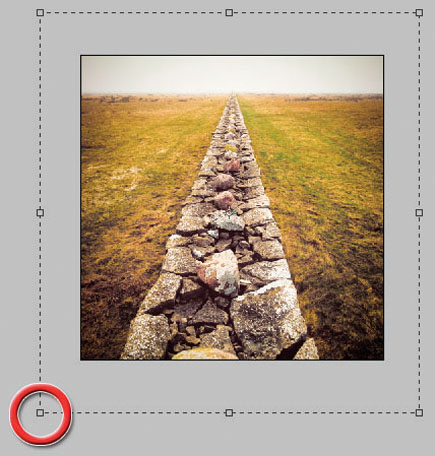
2. With the Crop tool selected,
draw a marquee around the whole of the image and then click drag
the corner handles outward to extend the background layer (and the
canvas) beyond the image area. As the rest of the technique requires
us to make filter changes to the image that are destructive, we
will now select both layers and convert them to a single Smart Object
(Layer>Smart Object>Convert to Smart Object) before moving
on.
|
|
|
3.The Polaroid technique requires
the watercolor paper to be slightly wet at the time of transfer.
The moisture, while helping the image movement from paper to paper,
tends to desaturate the colors and cause fine detail to be lost.
These characteristics are also the result of the coarse surface
of the donor paper. So the next step of the digital version of the
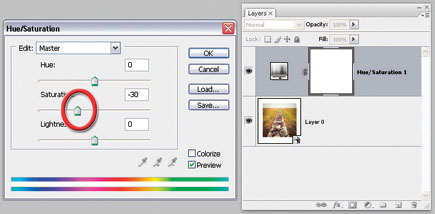
process is to desaturate the color of our example image. In Photoshop
this can be achieved nondestructively using the Hue/Saturation adjustment
layer (Layer>New Adjustment Layer>Hue/Saturation). With the
dialog open, carefully move the Saturation slider to the left. This
action will decrease the intensity of the colors in your image. |
|
|
4. The distinct surface and
image qualities of Polaroid transfer prints combine both sharpness
and image breakup in the one picture. To reproduce this effect digitally
and nondestructively, we will use the new Smart Filter options in
CS3. My idea is to manipulate the look of the photo with a couple
of filters to simulate the mottled effect of the transfer print
and then use the Smart Filter Blend mode and Opacity settings to
adjust how much sharpness (of the original image) or mottle (from
the filters) is obtained in the final result. To do this I selected
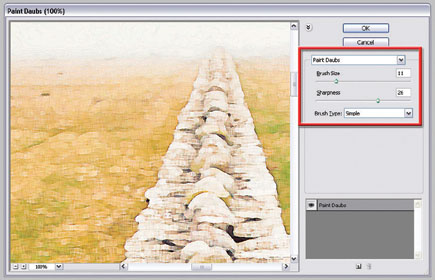
the Smart Object layer and applied the first of two filters, Paint
Daubs, to the picture.
Though the look is not quite right, I found that by combining the
effects of the Paint Daubs and Palette Knife filters I could produce
reasonable results. When using these filters keep in mind that the
settings used will vary with the style and size of your image. Use
the ones in the example as a starting point only. This part of the
process is not an exact science. Play and experimentation is the
name of the game; keep in mind that you can adjust the settings
any time in the future as these are Smart Filters. You might also
want to try other options in the Artistic, Sketch, or Texture selections
of the Filter menu.
|
|
|
5. The next step is to adjust
how these filter effects combine with the original photo. This can
be achieved by either changing the filter's Blending mode
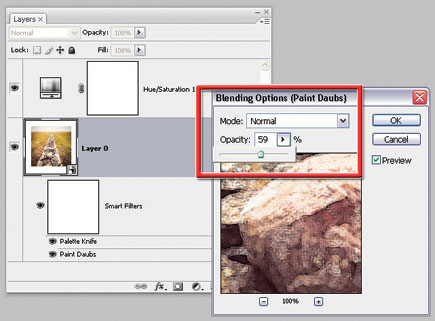
or by adjusting its Opacity, or both. For the example image, a simple
Opacity change (to 59 percent) was all that was needed, but don't
be afraid to try a few different Blend/Opacity combinations with
your own work. To access these options, double click the Settings
icon at the right-hand end of the filter layer. This will display
the Smart Filter Blending options palette. Here you can alter both
Blend modes and Opacity of the selected filter and view the changes
in the associated preview. Be careful though, as any filter selected
that is not on top of the filter stack will be previewed without
the combined effects of the other filters.
|
|
|
6. The paper color and texture
are critical parts of the appeal of the transfer print. These two
characteristics extend throughout the image itself and into the
area that surrounds the picture. To change the color of both the
image and the white surround, I played with the overall color of
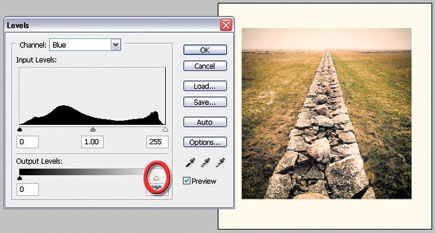
the document using a Levels adjustment layer (Layer>New Adjustment
Layer>Levels). I altered the blue and red channels independently
and concentrated on the lighter tones of the image so that rather
than the paper being stark white it took on a creamy appearance.
Specifically, I dragged the white Output slider in the blue channel
toward the center of the histogram (to add some yellow to the highlights)
and I moved the white Input slider of the red channel to the left
to bring in some warmth.
|
|
|
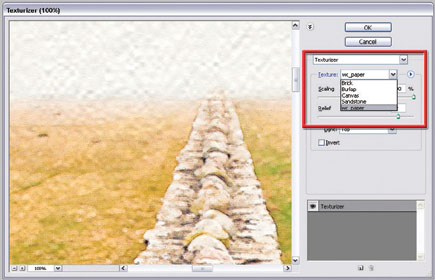
7. To add the texture to both
image and the white background surround, I added yet another filter
to the Smart Object layer. This time I used the Texturizer filter,
combined with a custom texture of the surface watercolor paper that
I created by photographing a section of paper that was lit with
a light source positioned low and to one side. To load the watercolor
paper file, select the Texturizer filter from the Filter>Texture
menu and then click onto the sideways arrow in the top right of
the dialog and choose the Load Texture option. Browse for and select
the texture file before adjusting the Scaling, Relief, and Light
options in the filter to suit.
|
|
|
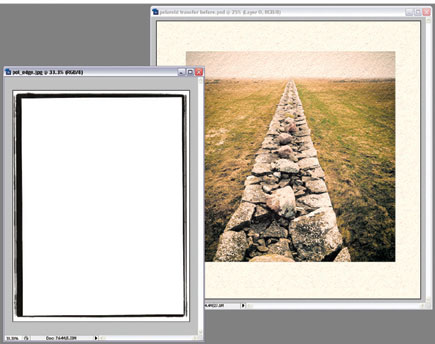
8. The last part of the process
involves combining the final image with a scan of a Polaroid film
edge. You can make your own by scanning a Polaroid print and then
removing the image or use a ready-made rough edge frame image (available
for download from many sites on the web). Start by opening the edge
file as a separate document. Click onto the edge picture and drag
it onto your Polaroid transfer image. The edge will automatically
become a new layer on top of the existing image layer. Convert the
edge layer to a Smart Object by right clicking on the layer and
choosing the Convert to Smart Object entry.
|
|
|
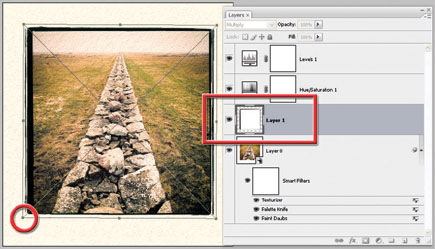
9. Next, with the edge Smart
Object layer selected, change the layer's Blend mode to Multiply.
Notice that the white areas of the layer are now transparent, allowing
the picture beneath to show through. Drag the edge layer to just
above the image in the layer stack (below the Hue/Saturation and
Levels adjustment layers), to ensure that the adjustments made by
these layers are applied to the Polaroid edge image as well. Finally,
use the Edit>Free Transform command to adjust the size of the
edge to fit the image and the Crop tool to remove any unwanted background
areas. |
|