| |
Photos
© Rick Sammon, 2000
|
|
Someday, when you are sitting
at your computer and have nothing to do, open a picture in your photo
imaging program and try this: go to Filters and apply each and every
filter to that picture. You may find that some filters make your picture
look worse than the original; some may border on the ridiculous. However,
while you are experimenting, you may find a filter that creates an unexpected
and very pleasing effect. An effect that makes you say, "Wow!"
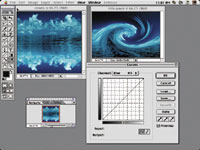
That's exactly what happened one day when I was playing with pixels
in Adobe Photoshop: I applied the Twirl filter to a picture of clouds
reflected on a calm sea. The effect turned the calm sea into a huge
tidal wave. I liked it--and the image inspired one of my favorite
Photoshop creations, one I call "Last Catch."
|
|
Here are the techniques I used--the
same ones you can use to create interesting and original pictures.
I scanned an Elite Chrome 100 picture of a calm sea and clouds scene.
I played around with Filters. I went to Filters>Distort>Twirl and
turned (twirled) the calm sea and clouds into a crashing tidal wave.
Next, I got the idea of creating a mirror image of the tidal wave, which
would look like the sea was parting. Creating mirror images in Adobe Photoshop,
by the way, is easy. Here's how to do it:
|
|
1. Scan your picture and create
a new file.
2. Copy the picture, paste it into another file (same size and resolution
of your original picture), and go to Adjust>Rotate Canvas>Flip Horizontal.
3. Go back to your original file and double the width of the canvas area
on one side of your picture by selecting Adjust>Canvas size.
4. Drag your reversed image into the blank area of the newly sized canvas
and carefully line up the two pictures.
Presto, a perfect mirror image.
|
|
Naturally (for me), seeing
the parting waves brought to mind the Biblical image of Charlton Heston
as Moses parting the water in the Red Sea. So, I needed a man to walk
through the parted waves.
I found just the right subject in my stock file: a conch fisherman walking
along the beach. To place him in the scene, I used a basic cutting and
pasting technique. You can use it, too. Here's how:
1. Trace the subject with the Lasso tool.
2. Select Copy.
3. Using the Move tool, drag the selected area (the man in this case)
into the original picture and place it anywhere you want. This creates
a new layer (man) on top of the original layer (the waves).
The new image--a montage--looked okay, but it was reminiscent
of a poor cut and paste job. So, I played around some more.
In the man layer, I reduced the Opacity to 66 percent. This created somewhat
of a ghost effect--making it possible to partially see through the
man. This is a standard montage technique. Try it, you'll like it.
Next I went back to Filters>Sunburst and placed the sunburst near the
top of the scene. (You can place the sunburst anywhere in the scene.)
However, because I had reduced the exposure by about two stops, the sunburst
looked more like a bright, shining moon. It was just the effect I wanted.
As you can see, experimenting in imaging programs opens up a whole new
world of creativity, fun, and learning.
|