| |
Drag
a folder (or individual files) to the Storyboard (mode
shown) or Timeline and watch each slide take its place
in succession. Reorder images by dragging them into position.
Video clips can also be added to a presentation.
|
|
Further Information
MAGIX PhotoStory 2004
http://www.magix.com
You can't turn around
these days without bumping into a software package that purports to
be the ultimate slide show creation tool. Still, there are a few that
stand out, and Magix PhotoStory on CD & DVD 2004 ($39.99/Windows
only) is among them. PhotoStory 2004 provides a platform for the creation
of some very entertaining presentations. What it doesn't do is
let you create screen savers, which, in my book, is an oversight.
What makes the selection of Magix software different is that their applications
integrate musical accompaniment in a much more controllable fashion
than available in other programs. And the reason for that is simple:
At its heart, Magix, as a company, is involved in the music and audio
industry. And since I'm also involved with digital music, I stumbled
upon this company's music software a short while back, using it
to create some very interesting compositions. But more to the point,
that technology carries over to the creation of photo albums, with totally
controllable cross fades and effects unlike anything I've seen
elsewhere, and certainly not with this depth of user involvement.
|
| |
Add
titles by clicking on Text in Storyboard mode. A dialog
window opens with numerous choices, including the option
for scrolling text. Note one of the effect patterns on the
opening image.
|
|
Some Interface Concerns
The one familiar element is the tape recorder-style console panel and
the controls used to play the show or overdub audio. Horizontal scroll
bars let you navigate to different parts of the presentation.
Beyond that, things get more complicated and you have to get past the
PhotoStory interface, which can be confusing at first. The program doesn't
employ standard Windows menus and at first may appear to be stubbornly
working against your best efforts and instincts. In fact, it is anything
but intuitive. Another problem is that individual modules are treated
as independent programs, requiring each to be opened and closed in turn,
and they don't necessarily always speak to each other, so those
modifications in one are not necessarily carried over into the other--at
least not automatically. And what is truly annoying: The software development
team continues to overlook words in German (unless someone over there
is just a really bad speller), letting them stand as is (I've found
instances of this in every Magix software package).
|
| |
By
clicking on Effects in the blue window (upper right), a
selection of dynamic, often animated effects come into view.
Click on an FX to see it displayed on the video screen to
the left. Then drag the effect over the slide to implement
it. The effect is often apparent in the image on the Storyboard.
|
|
Create Your Own Slide
Show
Still, with all the above in mind, a little patience will pay off. Here's
a typical workflow for creating your own slide show.
Step 1. Assemble the images in a dedicated folder. You
can do this in PhotoStory, but I find it easiest to use Windows Explorer.
Don't worry if the images need to be re-oriented from horizontal
to vertical, cropped, or otherwise edited. You can do that inside PhotoStory.
Step 2. Drag and drop the folder or individual images
into the "Timeline" or "Storyboard." You can choose
to view the presentation in either of two ways. The Timeline view is essentially
a more detailed, graphic representation showing cross fades, audio, text/titles,
and music clips in a way that makes it easier to edit each directly on
the screen. The Storyboard view is simpler and less involved. All the
frames are presented linearly. It's also easier to move frames around
on this screen first. I prefer to start in Storyboard mode, then finesse
the presentation in Timeline view.
Text, effects, and audio can be added at any time. One does not affect
the other, although adding lots of audio, while adding texture, will weigh
heavily on your system and add considerably to the size of the final presentation.
Acceptable image file formats include JPEG, TIFF, Windows Bitmaps, ZSoft
Paintbrush (PCX), Adobe Photoshop, and Photo CD (PCD). Photo Clinic, the
image editor, also reads GIF, but can export to a format usable in PhotoStory.
You can also add video clips.
|
| |
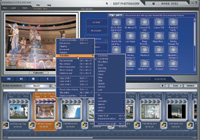
Right-clicking
with the cursor over a frame on the Storyboard results in
a pop-up menu, with additional menus to follow. Effects
other than those dragged over the frame are available here.
|
|
Step 3. In
Storyboard mode, click on "Text" to enter a title or other
text, such as copyright information. You can do this individually for
each slide. For the Las Vegas show I created, I added a title and byline
on slide 1, closing with a shot of the slot machines at the airport, with
text reading: "Leaving Las Vegas." Fade out.
Step 4. While still in Storyboard mode, click "FX"
to add effects. These could range from transitions to effects that actually
modify the original image, such as Kaleidoscope. But be careful, since
the effect may surprise you in unexpected ways. If you don't like
what you see (and this applies to any action), click on Tools, then Undo.
Undo is virtually unlimited. (Timeline mode adds Undo/Redo buttons.)
You can select from the effects on the pop-up window, or move over to
the Effects screen, and drag and drop transition effects onto the individual
frames. They're not entirely the same, so a little time getting
familiar with this aspect of the program is time well spent.
|
| |
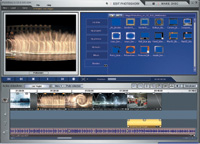
Timeline
mode is where you exercise tighter control over faders and
placement of voiceover clips and music. Borders are an additional
effect available, and can be selected in either mode..
|
|
Step 3. In
Storyboard mode, click on "Text" to enter a title or other
text, such as copyright information. You can do this individually for
each slide. For the Las Vegas show I created, I added a title and byline
on slide 1, closing with a shot of the slot machines at the airport, with
text reading: "Leaving Las Vegas." Fade out.
Step 4. While still in Storyboard mode, click "FX"
to add effects. These could range from transitions to effects that actually
modify the original image, such as Kaleidoscope. But be careful, since
the effect may surprise you in unexpected ways. If you don't like
what you see (and this applies to any action), click on Tools, then Undo.
Undo is virtually unlimited. (Timeline mode adds Undo/Redo buttons.)
You can select from the effects on the pop-up window, or move over to
the Effects screen, and drag and drop transition effects onto the individual
frames. They're not entirely the same, so a little time getting
familiar with this aspect of the program is time well spent.
Step 5. Let's pause for a moment, and consider
which images may need to be edited. You can access Photo Clinic, the image
editor, in either Timeline or Storyboard mode. In Storyboard, click on
Tools, then Photo Collection--or use the Photo Collection button.
Timeline permits a more direct route. Right-click your mouse over an image,
scroll down and select Edit Picture.
Photo Clinic, as far as image editors go, is okay: It lets you use plug-ins
that may already be installed elsewhere on your computer, but is selective
about which ones it talks to. If you have Photoshop or Elements, that
would be my first choice. By the way, it may appear that the editor disregards
any effects previously applied in PhotoStory. Not so. They're still
there when you return to PhotoStory. But you first have to save the changes
for them to be carried over to the slide show. Then close the editor,
or otherwise find your way back to the main application (they're
treated as independent programs).
There is a second, less complicated editing option called Picture Restoration.
You may find this is all you need for a quick fix.
If you're in Photo Collection, you have to exit this screen before
continuing.
Step 6. In Timeline mode, add audio. This can be done
as a voice overdub (WAV format)--on the designated timeline. But
let's just skip to the music, which goes on a separate timeline.
(And in case you're confused, the program intuitively drops them
onto the correct timeline--visuals/text/audio, but it's up
to you to position them under the right slides.) Drag and drop or double-click
on the music clip (under My Music). I brought in my own MP3 composition,
although I could have used the tunes provided in the software package
(in the proprietary Magix format).
By grabbing the object handles (those rectangular shapes superimposed
over each timeline clip) you can control various aspects of visuals and
audio. The music faders overlay the line of audio. Grab the one on the
left (with the mouse) and push to the right to fade in; grab the one on
the right and move it to the left to fade out (note the horizontal line
is now a diagonal, indicating the fade). Fades can be long or short, and
usually, the music should extend past the last slide, for a well-synchronized
fade out, beginning before or after, or coinciding with, the first image--all
dictated by content and taste.
Step 7. Optional. You can export the presentation to
a video movie format (MPEG, AVI, Windows Media, and Real Media) on the
hard drive, if you don't want to devote an entire disc to your creation.
Or you can take the plunge and...
|
| |
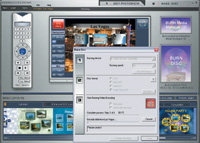
Click
on the Burn Disc button under the Make Disc tab. A dialog
window opens up. Choose the video format. Then click the
red disc icon to begin
the process.
|
|
Burn The Movie To Disc
You can burn a DVD, Video CD (VCD), Super Video CD (SVCD), or Mini DVD.
This could take a while.
Step 1. Click the Make Disc tab at the top. You're
now in new territory.
Step 2. The specific steps to follow will depend on what
type of disc you're burning. Essentially, after loading the slide
show/project, just hit the Burn Disc button to open a dialog window. Now
follow steps 1, 2, and 3, under Create Your Own Slide Show and click the
disc icon to complete the process. Now, sit back with a cup of tea or
hot chocolate and a magazine.
There are a few things to watch for when burning a disc. First, disable
your screen saver, as this could seriously interfere with the process.
Second, I found that, when burning an SVCD and VCD on my Dell Pentium
4, under Windows XP Professional, Roxio Easy CD and DVD Creator 6--specifically
the Drag to Disc component, proved disruptive.
Still, when all is said and done, I had fun. You bought a digital camera
or scanner so you could share pictures. Magix PhotoStory on CD & DVD
2004 lets you do just that--and do so in an entertaining fashion.
There's no longer any need to load up a tray and sit everyone down
in front of a slide projector to view your vacation slides. Send out a
disc they can view at their leisure.
Magix Movie Edit Pro
2004
PhotoStory treats each slide
show as if it were a movie, even to the point of letting you add movie
clips to any presentation. However, if you'd like to work with actual
movies, then Movie Edit Pro 2004 ($99.99/Windows) may be the way to go.
Movie Edit Pro lets you transfer and work with VHS and digital movies,
as well as video clips recorded on a still digital camera. The interface
on the movie editing program is much like that in PhotoStory. Transitions
and effects in this application, however, are far and away better and
more seductive, exceeding anything you could possibly need. They include
time reversal (action moves forward and backward), chroma-key, retro-style
scratchy cinematic effects, image stabilization (in case you forgot to
activate this feature on the camera, or it wasn't available), picture-in-picture,
title effects, and much more.
Moreover, there is a Song Maker that composes original musical accompaniment--perhaps
not the most accomplished compositions, but certainly usable and better
than a lot of the canned stuff you'd get off the Internet. (And
you can use the $59 Music Maker 2004 Deluxe if you're really serious
about your music videos--no musical background or instruments required.)
Considering its modest price, Movie Edit Pro 2004 is fairly robust--and
it is certainly fun to use. It may not make you the next Steven Spielberg,
but you'll get a good spiel out of it.
Contact
MAGIX Entertainment Corp.
(305) 695-6363
www.magix.com
|