| |
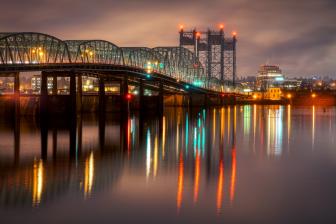
Before
the author applies any special effects to a digital image
he likes to make sure the photograph looks as good as
it can. Here Extensis Intellihance Pro 4.0 is used to
tweak the image.
Photos © 1999, Joe Farace, All Rights Reserved
|
|
Giclee (pronounced "zhee-clay")
is a French word meaning "to spray on" or "to sputter."
Giclee reproductions were originally developed in 1989 as a plateless
method for fine art printing using large format ink jet printers and
watercolor with art quality papers, including canvas. Output from the
giclee process can reproduce more than five million colors. It features
vibrant color and fine detail, combined with the texture of the paper
that's used.
The Iris ink jet printer is one of the most popular models used to produce
fine art giclee prints. Large format printers are also offered by Encad,
Epson, Hewlett-Packard, Roland, and others. Information on some of these
printers can be found in my PMA trade show report in the May issue.
Iris Graphics manufactures ink jet printers that use controlled, variable-sized
ink dots allowing them to produce output with the visual characteristics
of a continuous-tone photograph. While printing at an addressable resolution
of 300 dots per inch (dpi), Iris printers produce images with an apparent
or perceived resolution of 1500-1800dpi. That's because in order
to achieve comparable resolutions, a printer creating images with uniform-sized
dots needs to deposit them at 1500-1800dpi. That's why a typical
giclee print has a higher visual resolution than prints produced using
traditional 1200dpi lithographic methods.
|
| |
The
first step in creating a digital watercolor is to open an
image file in Adobe Photoshop or your favorite image-editing
program that has a "Watercolor" filter.
|
|
Why Giclee?
In the world of fine art digital printing, giclee images are scanned,
perhaps manipulated, and then stored in a computer before being sent to
a high resolution, ink jet printer. Unlike other reproduction methods,
each image is individually sent to the printer, which creates the kind
of slight color variations from piece to piece that fine art buyers and
gallery patrons look for in limited edition artwork. Most service bureaus
that offer this let you order as many prints as needed without having
to pay a large advance, then you have to deal with the storage problems
associated with traditional lithography. This means you can test market
a new image without committing to printing a large edition and paying
for a great number of prints. Because they allow you to control your cash
flow better, giclee reproductions are the perfect medium for aspiring
fine art photographers. For example, you can order just one print to frame
and use as a display piece. As orders roll in, you can have others printed
in large or small quantities. To help save money, most service bureaus
will let you print smaller images either two up or four up on one sheet
for the single-sheet price.
In case you're worried, giclees are accepted by museums around the
world including New York's Metropolitan Museum, the Guggenheim,
the Cor-coran Gallery in Washington, DC, and Atlanta's High Museum.
Some original watercolor paintings will fade faster than a well-made giclee.
The output media that are typically used for giclee prints are acid free.
Prints made on Arches Cold Press paper, popular for fine arts prints when
used with the Iris Graphics Equipoise Inkset, show a life of 32-36 years
when displayed in a standard indoor condition of 450 Lux for 12 hours
per day. Some service bureaus offer a UV protectant spray which is said
to prevent fading and add protection from moisture. Because of the drying
agents used in many sprays and lacquers I've always been skeptical
about using sprays on any print and my suspicions have been verified by
the research Wilhelm Research presented to the International Association
of Fine Art Digital Printmakers in 1998. Their report stated that "print
coatings tested to date (the original report was updated February 12,
1999) have shown little if any benefit in term of prolonging the display
life of Iris ink jet prints." The report further states that "...the
coatings have even proven to be harmful to image stability."
|
| |
Photoshop's
Watercolor filter has three sliders that you can use to
creatively explore the possible effects. Don't be
afraid to go overboard and use the program's Fade
command to moderate the effect to suit your taste. Paper
cut to letter size.
|
|
Preparing Files For
Fine Art Printing. The best way to get quality results from a
service bureau is to provide them with digital files in a format that
they know will produce the best output. In discussing the production of
fine art prints with various service bureaus, I obtained to the following

suggestions. These are general guidelines and you should check with your
specific service bureau before submitting any file for printing.
Color Space. Photographers should submit files in either
CMYK or Lab Color format. While most printers are capable of printing
RGB images, the results may be predictable. Any printing process that

involves ink on paper must ultimately be converted into a reflective color
model such as CMYK, but many service bureaus have seen excellent results
printing files produced in Lab Color. The CIELAB system, sometimes shortened
to just LAB, was created by the Committee Internationale d'Eclairage
to produce a color space that consists of all visible colors. It forms
the basis for most color matching systems and lets you convert, for example,
RGB images to LAB to CMYK in order to produce accurate color matching.
Some users found that, depending on the version, Photoshop's RGB
to Lab conversion doesn't always produce consistent results. You
may have better luck converting your RGB files into CMYK for submission
to a service bureau. Whatever you do, don't use both Lab and CMYK
images in the same document created with an illustration or desktop publishing
package such as Adobe's PageMaker or InDesign.
Keep It Simple. Files with extra channels and compression
can cause problems during printing. They can be rejected by the RIP (Raster
Image Processor) with PostScript printing errors. Files should not be
compressed; the service bureau will have to uncompress them before printing,
or they may not discover it in time, creating an expensive and ruined
print. In addition, any extra channels should be removed before printing.
|
| |
The
Custom/Advance dialog box of Epson's printer driver
includes sliders that let you experiment with brightness
and saturation settings to get the exact effect you are
trying to achieve with your desktop printed fine art prints.
|
|
Media. When
submitting files, most services bureaus accept projects stored on Iomega
Zip or Jaz, SyQuest 44/88/200/105/270 cartridges, floppy disks, 128M and
650M/1.3G Magneto-Optical (MO) cars, CD-ROM, Bern-oulli, and of course,
via the Internet. I would not be surprised, given the popularity of the
floppy-less Power Macintosh G3, that many service bureaus will also be
accepting images saved on Imation's 120MB SuperDisk cartridges.
File Types Accepted. Most service bureaus accept a lot
of different file types, including Adobe PageMaker, Illustrator, Photoshop,
Macromedia Freehand, and others. If all they wish to print is an image,
a TIFF (Tagged Image File Format) or EPS (Encapsulated PostScript) file
will produce the best results.
Image Resolution. The resolution of your giclee file
should be 300dpi. Since many large format ink jet printers are still 300dpi
devices, creating images with higher resolution will accomplish nothing
except produce a larger file size and under some circumstances result
in visible pixelization.
Ink Jet Art On Your Desktop. If you would like to try
your hand at making small fine art prints, you can experiment with the
ink jet printer that's already sitting on your desktop. The first
step is to visit an art supply store and ask to see their selection of
watercolor papers. Take a look at their selection, but keep in mind that,
unlike the typical giclee printer, a desktop ink jet printer has limited
paper thickness capabilities. Most printers, such as the Epson Stylus
Photo750, have a "thick paper" handling option. This feature
is designed so you can print on envelopes or labels, but you can use this
feature to your advantage when experimenting with fine art output. The
heaviest watercolor paper I've found that works with Stylus Photo
in envelope mode is 90 pound stock, but be wary of too heavily textured
paper. The ink may not penetrate deep textures and you may not be happy
with the results. Then again, given the artistic approaches possible,
maybe you will. While at the art supply store try to get samples of some
of the other watercolor papers they have in stock. Sometimes these sheets
are only available in larger sizes that will be too large for the typical
desktop printer. These large sheets can always be trimmed down to fit
whatever size paper your printer can handle and many times the store will
be happy to do the trimming for you.
|
| |
The
final watercolor image was printed on an Epson Stylus Photo
750 ink jet printer on Arches watercolor paper cut to letter
size.
|
|
When running your initial test
prints you should be aware that the printer driver decides how much ink
to spray based on the kind of paper that you have selected. Since art
and watercolor paper are not the normal choices, you're going to
have to experiment with the available choices to find one that works.
You may even find that none of them will work with the porous watercolor
paper you have selected. Don't panic. If that's so, it's
time to go deeper inside your driver and look for sliders that allow you
to control the amount of ink or saturation that you can apply.
When making your first test prints, slice up the paper into 4x6"
(or so) sized bits. It will take less time to make small test prints than
large ones and will save time and money while you experiment. Don't
reduce the size of your test image to 4x6". Instead, carve out a
4x6 section of your original photograph and just print that with your
test strips. This way, you'll be able to better evaluate the grain
structure of the paper when used with your photographs.
As with all digital experiments, keep detailed records. Most printer drivers
allow you to create custom setting so once you find a combination that
you like, you can save it and make the effects repeatable. If you want
to do more than print conventional digital images on artist's paper,
take a look at the next section showing how to create a "digital
watercolor."
Using A Watercolor Plug-In. When creating a digital image
for printing on watercolor paper you may want to first give it a watercolor
"look." One of the easiest ways to do that is with Adobe Photoshop
and its built-in Watercolor filter.
Step One. Open any image in Adobe Photoshop. In this
case I used a FlashPix file that was created from an image of Denver's
lower downtown area that was originally shot on Kodak color negative film.
This file was opened from a FlashPix CD, but any other source will work
equally well including Photo CD or an image acquired from a digital camera
or scanner.
Step Two. Before I apply any filter or plug-in to a digital
image, I like to clean up the file so it looks the best that it can. I
usually start with Photoshop's cropping tool to remove any dark
or rough edges that might have been created during the original scan.
In this case, there was a black edge near the top of the frame that I
wanted to remove. Next, I used Extensis Intellihance Pro 3.0 plug-in to
tweak the photograph. By analyzing each digital image individually, Intellihance
Pro determines the optimal setting for enhancing and color correcting
it. The plug-in consolidates all of your imaging options into a single
large dialog box that includes preset enhancement settings for images
produced by a scanner, Photo CD, digital camera or other sources.
Step Three. Next I applied Photo-shop's Watercolor
filter, which is found in the Artistic submenu of the Filters menu. Take
a few minutes to experiment with manipulating the three sliders in the
plug-in's dialog box that are used to add a watercolor look to your
photograph. When using the slider, you can go heavy or light. In this
case, I used a middle of the road approach and you can always use the
program's Fade command to moderate the effect--even after you've
applied the filter.
Step Four. Since, the hard edges of the finished image
seem out of place for a watercolor image, I like to use the Vignette Action
to apply soft edges to the finished image. The Vignette Action, among
with many others, can be found on the Photoshop CD-ROM on either Version
4.0 or 5.0. In this case the final print was made on Arches Watercolor
paper that my art supply store cuts to letter size for me. The print was
made using an Epson Stylus Photo 750 ink jet with all of the standard
defaults--including "Plain Paper"--but with the Saturation
slider set at -10.
Fine Art Digital Printing
On The Web
Iris and other large format
ink jet printers are far too expensive for many people to afford. Many
service bureaus--some of which specialize in the creation of fine art
images--offer services that allow the average photographer to take advantage
of this technology. By no means are these service bureaus the only ones
offering fine art imaging. To find one in your area, check your local
Yellow Pages for commercial photo labs. You can also use the World Wide
Web to search for giclee printers, which is how I found the companies
listed here. The following list contains contact information on some companies
I found while doing research for this article and their listing here does
not qualify as an endorsement by me or Shutterbug. Visit the company's
individual web sites to get information or call them about their policies
and practices. Each one does business a little differently and what some
include as standard others may offer as options.
Classic Editions (www.classiceditions.com)
Color Works (www.colorimaging.com)
Fine Print Custom Photo Lab (www.fineprint.org/gichome.html)
Gamma One (www.gammaone1.com)
Staples Fine Art Reproductions, Ltd. (www.staplesart.com)
Thunderbird Editions (www.motors.com)
One World Art (www.oneworldart.com)
Manufacturers/Distributors
Adobe Systems Inc.
345 Park Ave.
San Jose, CA 95110
(408) 536-6000
fax: (408) 537-6000
www.adobe.com
ENCAD, Inc
6059 Cornerstone Court West
San Diego, CA 92121
(619) 452-0882
fax: 619-5618
www.encad.com
Epson America, Inc.
20770 Madrona Ave.
Torrance, CA 90509
(800) 463-7766
(310) 782-0770
fax: (310) 782-5220
www.epson.com
Extensis Corporation
1800 SW First, Suite. 500
Portland, OR 97201
(503) 274-2020
fax: (503) 274-0530
www.extensis.com
Hewlett-Packard Co.
3000 Hanover St.
Palo Alto, CA 94304
(800) 752-0900
(650) 857-1501
fax: (650) 857-5518
www.hp.com
Iris Graphics
Six Crosby Dr.
Bedford, MA 01730
(781) 275-8777
fax: (781) 275-8590
www.irisgraphics.com
Roland DGA Corporation
15271 Barranca Parkway
Irvine, CA 92618
(949) 727-2100
fax: (949) 727-2112
www.rolanddga.com
|