| |
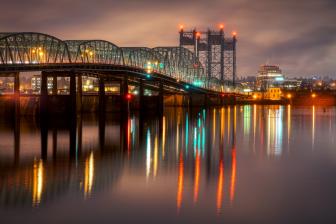
In
certain lighting conditions, images can exhibit a strong
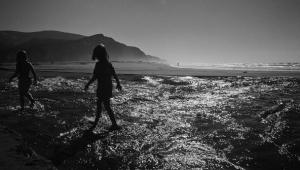
overall "color cast" or tint, as in this
image, made near sunset on a hazy day with a high air
pollution level. (Auto white balance.)
Photos © 2003, Peter K. Burian, All Rights Reserved
|
|
Just about
everyone loves pictures with rich but accurate hues and tones that enhance
the subject. We're less impressed with photos that exhibit flat,
dull colors or an artificial neon-like dazzle. There's no scientific
standard for "correct" color rendition. Still, most folks
agree that images should not exhibit an unattractive color "cast":
an overall blue or yellow tint, for example. And we often appreciate
images with slightly higher color intensity or "saturation"
than the original subject.
In some cases, you can achieve very pleasing colors automatically with
the default settings of your digital camera. In other situations, it's
worth trying the following techniques for making images in the camera
and later with ink jet printers to get gorgeous colors that will enhance
your subjects and delight your eyes.
|
| |
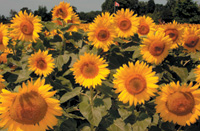
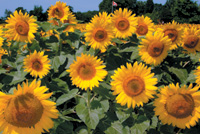
With some experience in using the color correction tools
in image-editing software, it's possible to improve
images that exhibit poor color balance. In this case,
I used the "Auto Levels" feature in Photoshop
7.0 and then applied a "+25 Green" factor
in "Color Balance" correction to eliminate
a strong magenta cast.
|
|
Adjust The White Balance
Although most types of illumination appear white to our eyes, the actual
color of light can vary significantly. That's why some images may
exhibit an unusual color cast: blue when made on overcast days or in deep
shade, yellow around sunrise and sunset, and green when sunlight is filtered
by foliage. The color of artificial light varies, too. It's green
with many fluorescent tubes, orange with household lamps and even stranger
colors with sodium vapor or esoteric types of lighting. Our eyes adjust
to these color casts and make colors look "right" but photographic
materials--especially film--and digital camera sensors do not.
But digital does have an advantage.
That advantage is what's known as an automatic white balance system.
It's designed to render whites accurately under various types of
light. While some cameras have a very reliable auto white balance system,
you'll get the most faithful color balance by making your own white
balance settings. Most cameras include settings for sunny days, for overcast
days, and for use under household "tungsten" lamps and fluorescent
lighting. Select the appropriate for the situation, and you should get
fairly accurate results, without a strong color tint in your images.
Cameras rarely include a white balance setting for sunrise or sunset or
for unusual types of artificial lighting. In order to reduce the risk
of a strong color casts under such illumination, some cameras offer a
Custom white balance option. Use it as directed by the camera's
instruction manual, and this feature allows you to "teach"
the camera to render whites as white, regardless of the color of the lighting.
When whites are white, all other tones should be quite accurate as well.
|
| |
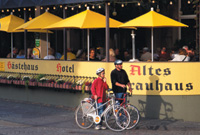
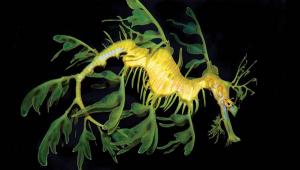
Certain
subjects benefit from bold, vibrant hues and tones while
others look better with more subtle colors. You can achieve
any desired effect by employing the techniques discussed
in the text.
|
|
Calibrate Your Monitor
If the colors that you get in prints are different than the colors displayed
by your monitor, you'll need to take an extra step. You'll
need to "calibrate" your monitor: change its settings until

it provides an accurate display. This calls for adjusting the Adobe Gamma
with one of the Photoshop programs. The process is not overly difficult
if you get some guidance from instruction packages available from companies
such as ColorBat www.colorbat.com.
(Price $20)
You may also want to check out the DisplayMate www.displaymate.com
software ($70) for monitor calibration. This program provides a series
of test patterns and offers advice on what you can do to improve the display
image. If you're a very serious print maker who wants highly accurate
colors in ink jet prints, consider the sophisticated products such as
Monaco EZ Color software (www.monacosys.com)
or the Spyder with PhotoCAL system (www.colorvision.com).
(Both cost close to $300.)
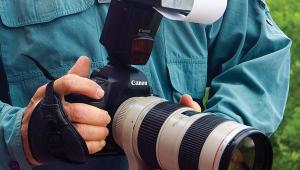
Use Electronic Flash
For Close-Ups
The light from a built-in flash unit is white, or slightly blue. When
shooting indoors under artificial lighting, use flash as the primary light
source in order to prevent color casts. Because the range of a small flash
unit is not great, move in close to your subject: 10 feet or less. With
flash, the auto white balance setting should be quite reliable. If the
camera includes a white balance setting for flash photography, that should
produce an even more accurate color rendition.
After Exposure, Eliminate
Color Casts
While it's best to make images with accurate colors, you can also
correct your pictures with image-editing software. The various programs,
including many versions of Adobe Photoshop, include tools for adjusting
color balance. Depending on the software, you'll find options such
as Adjust Tint, Color Cast Correction, or Color Balance. Some Photoshop
programs include Auto Color Correction and Auto Level options that can
sometimes produce the desired effect instantly.
Some color correction tools allow you to adjust the color balance toward
a specific color. The software screen provides guidance, suggesting that
you increase magenta to eliminate a green cast, increase cyan to correct
a yellow color cast, and so on. Other color correction tools require you
to select a target: an area of the image that should be pure white, or
gray, or black. These work quite well in eliminating a color cast but
you may need to try the process a few times. Select a different target
in the image for each attempt until you're happy with the results.
|
| |
If
you want to make ink jet prints that are true to the image
that you viewed on your computer monitor, start by calibrating
the monitor. Using a Photoshop program, convert the image
to Adobe RGB (1998) color space, enhance its color rendition,
and use the correct printer settings for the paper that
you have loaded.
|
|
Get Pleasing Color
Saturation
Color saturation defines the intensity of colors. A certain tone can be
deep and vibrant, like an indigo sky or a stunningly rich crimson maple
leaf in autumn. Images with low color saturation include hues and tones
that are flat, without any deep colors. Conversely, excessive color intensity
produces an artificial cartoon-like effect that's rarely desirable.
Some digital cameras produce low color saturation while others produce
very high saturation in their default modes. As well, certain types of
light can affect color saturation. Harsh, direct sunlight can cause glare:
reflections that "desaturate" colors, making them appear to
be washed out. The soft light on a cloudy day generally produces richer
colors, with greater saturation.
Some digital cameras include a menu item for color saturation with settings
for Low, Normal, and High. For some portraits, you may want to shoot with
a low color saturation setting to avoid creating harsh skin tones. You
can always increase color saturation later, in image-editing software,
with fine control over the exact amount of any adjustment. Avoid the high
saturation setting because it may produce excessive saturation that can
be very difficult to correct.
Use A Polarizing Filter
If your digital camera accepts filters, consider buying a polarizer to
make outdoor images with deeper color saturation. By wiping glare from
reflective surfaces, the filter can produce richer blue skies and more
intense colors. Rotate the filter to increase or decrease its effect,
watching the changes in the camera's LCD monitor. You'll find
that the polarizer is most effective when light strikes your subject from
the side. If the filter does not seem to have much effect, change your
shooting position relative to the sun and try again.
Fine-Tune Color Saturation
After downloading your images to a computer, you may want to slightly
increase or decrease color saturation with image-editing software. Experiment
with different levels of saturation, using the "cancel" or
"step backward" control if you're not happy with a specific
effect. After a few tries, you'll find the color saturation level
that's just right for a particular image.
Select The Right Color
Format
Most digital cameras and scanners make images in a color format or "color
space" called "sRGB" that's optimized for viewing
on a monitor or for web use (a color space defines the range of colors
available for a digital image file). If you're planning to make
prints, you'll want to select a different color space option: one
that will accurately reflect the range of colors that an ink jet printer
can generate.
Many of the recent Adobe Photoshop programs allow you to select "Optimized
for Print" or "Adobe RGB (1998)" color space (this option
is available in the "Edit" menu, under "Color Settings").
After making that selection, use image-editing software to enhance an
image until it looks perfect on the monitor and the printer should reproduce
the colors that you see.
Use The Right Printer
Settings
For the most reliable color rendition, use the papers made by your printer's
manufacturer. Simply select the paper type that you're using--in
the printer driver software--to get great colors in your prints.
If you want to experiment with an independent brand paper, check the distributor's
web site for tips on the suitable printer software settings. Some of those
sites also offer free "Custom Color Profiles": software that
optimizes color rendition when using their papers with certain ink jet
printers. Download and use those Profiles and you should get accurate
colors with that brand of paper.
Develop Your Own Standards
As mentioned earlier, there is no "rule" for correct color
rendition. Allow your own subjective preference and good taste to be your
guide. Remember that certain subjects benefit from bold, vibrant hues
and tones while others look better with more subtle colors. Use in camera
settings to make images that are quite faithful to the subject, and then
rely on image-editing software to adjust both color balance and saturation.
This extra effort will pay off, helping you to make images and prints
with great visual appeal.
|