


- REVIEWS
Camera Reviews 
More Reviews Mobile Reviews Photography Reviews - GALLERIES
- VIDEOS
- BUYER'S GUIDES
Canon’s PIXMA Pro9000; A Speedy Color Inkjet Printer Page 2
 |
|
 |
|
|
I also used a selection of new Ink Press papers (www.inkpresspaper.com),
including their Fine Art Matte, a double-sided 220 gsm, 12 mil thick, 75 percent
wood pulp, 25 percent cotton rag paper. Profiles were available at the Ink Press
website. Some profile tweaking was needed for the Fine Art Matte, where more
contrast than initially printed was created (my taste); their Warm Tone Picture
Rag 300 and especially Fiber Gloss were right on.
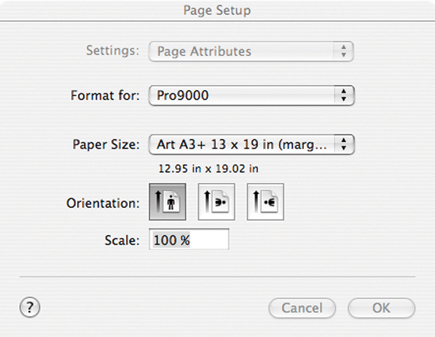
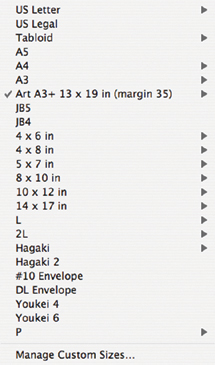
Once the paper has been fed in you get to work with the dialog boxes. See the
accompanying illustrations for a bit of a walk through on that. While the results
were excellent and matched the screen image on my MacBook Pro hooked up to an
Apple Cinema Display monitor to a "T," those who relish setting
numbers and knowing the dpi of the output etc. might be disappointed. If you
are used to working with more advanced printer drivers you might feel somewhat
left out here and wanting for more information. I could not find the information
in any supplied literature, for example, on what constitutes "Fine"
or "Fast" or anywhere in between on the slider found in the Detailed
Print Settings dialog box. For some reason Canon was reticent to share that
information.
 |
|
|
While I was more than satisfied with the color output on nearly every paper
surface supplied I cannot say the same with black and white and monochrome prints.
While the subtlety of tone and detail was very good, the shift of coloration
is something I just can't accept anymore in a black and white inkjet print.
This "metamerism" is something that dye ink printers can't
seem to shake, and the use of only one black in the ink mix means a high degree
of color compositing goes on in the output. The prevailing light seemed to cause
a shift--prints came out fine (neutral) in the afternoon; by twilight they
were warm; by evening they looked magenta and at times they even looked "greenish."
Not in extremes, but enough to convince me that this was not a printer I'd
use for black and white.
One thing that was very much appreciated with this printer was the information
displayed in the dialog box and especially the ease of changing inks. As the
individual carts drained the bothersome bouncing printer display would come
up at the base of the MacBook Pro and show a dialog box indicating which ink
cart needed changing. All you need do is raise the top of the printer and the
inks automatically drift smoothly into view. The ink cart needing change is
indicated by a red flashing light, whereas all the "good" ink slots
glow a steady red. You just pop the ink out of the package, strip the plastic
protector and propeller-like ink stopper and insert--you are rewarded with
a steady red glow, after which you close the lid and you're all set to
go.
 |
|
|
In all, I'd highly recommend this printer for color work using the Canon fine art papers. If you are making reproductions of scanned artwork the PIXMA Pro9000 delivers incredible subtlety of tone and reveals every brush stroke on the Museum Etching paper. Seeing as more artists are making inkjet reproductions of scanned originals for sale the printer could allow you to do a nice little side business. The semigloss is one of the nicest traditional color paper emulative surfaces I've seen, and the Premium Matte and Photo Rag are top choices for work of all manner. While the monochrome printing quality might cause some to pause about this printer, this degree of color quality, convenience, and all-around ease of use from a $499 printer is hard to beat.
The Canon Art Papers
As many printmakers know the paper used has a profound effect on the look and
feel of the image. The Canon line-up of art papers makes a contribution to the
quality paper offerings available to photographers today. While Canon does not
coat its own papers, the obvious advantage of using them in printers like the
PIXMA Pro9000 is that the company has spent considerable research time in creating
profiles that bring the best out in the paper/ink combinations. Of the papers
I got to test I particularly like the Museum Etching for fine art reproductions
and the Photo Rag and Premium Matte for color photography. Of the selection
available to us for test the semigloss was the most like traditional fine-quality
color print paper, and color images made on it were dazzling and satisfying
to the eye.
For more information, contact Canon U.S.A., Inc., One Canon Plaza, Lake Success,
NY 11042; (800) 652-2666,
(516) 328-5000; www.canonusa.com.
| |||||||||
|

| ||||||||
- Log in or register to post comments
























 FEATURED VIDEO



Get the Latest Photo Tips, News & Reviews from Shutterbug!






| Camera Reviews Other Reviews | |
Mobile Reviews Photography Reviews Columns | |
News | |
Features | |
How-To | |
Resources |
 © 2024 Shutterbug
AVTech Media Americas Inc., USA
All rights reserved