| |
Once
all the drives and cables are installed there is not a
lot of room in the computer, which is why a bigger tower
case makes sense.
|
|
Step By Step
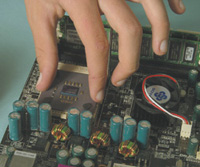
The first thing to do is insert the CPU into the large CPU socket on the
motherboard before putting it in the case. As long as all the pins are
straight that should be easy as a zero-force mechanism is utilized with
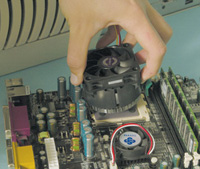
a lever to lock down the CPU, firmly imbedding it in the socket. Modern
CPUs run very hot so it is necessary to attach a fan which is clipped
onto the top of the CPU. Most good fans, such as the Antec Jet Cool, come
complete with a heat sink and special thermal compound for good conductivity.
Next the memory modules need to be inserted in their slots. In my case
I elected to use a couple of 256MB PC 2100 DDR RAM memory modules made
by Value RAM, a division of Kingston. Memory has become so inexpensive
nowadays that it's wise to use as much as possible, although most
digital camera users will not find great benefit of going beyond 512MB.
Those doing heavy graphics or video editing will benefit enormously from
added memory. Memory is another area where a name brand pays dividends.
I chose Kingston, but Crucial, Micron, and Viking are all brands with
a good reputation.
Next it's a good idea to mount the floppy disk, hard disk, and CD-ROM
drives in the case, as there will be more room without the motherboard
getting in the way. I opted for a 80GB 7200rpm Seagate hard drive as my
main drive to give me plenty of storage room and a good access speed for
digital image files. I also installed an old 5GB drive I had from an older
computer as a second drive for making quick back-ups. Once the drives
are installed, the motherboard can be mounted in the case with the standoff
spacers and screws supplied.
If the motherboard does not have integrated graphics capability it's
also necessary to install a graphics card in the AGP slot, as was the
situation with the Soyo Dragon motherboard. As digital editing is the
primary use, I chose to install a Matrox G550 graphics card, which is
aimed at business and graphic users rather than gamers. It provides excellent
2D graphics and has the added benefit of being able to drive two monitors,
which can prove really useful if you need lots of screen real estate.
Once everything is in place, plug in the power supply, the cables to the
drives (supplied with the case and most drives in retail boxes) as well
as the leads to the on/off button and any warning lights mounted on the
front of the computer.
Of course you'll also need a monitor to be able to use the PC, as
well as a mouse and a keyboard. Because of the importance of having good
quality color on the screen for digital image editing I opted to try the
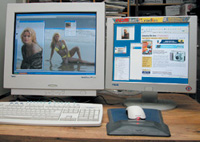
top of the line NEC FP1375X 22" CRT monitor for my main screen.
While I was at it I also hooked up a space saving 17" KDS RAD-7
LCD monitor as the secondary one. It's a great combination for working
on several projects at the same time and is really useful when editing
images, as you can have all the menus on one screen leaving an uncluttered
space on the main screen for the images you're working on.
Switch It On
Once everything is plugged in all that's left is to connect the
keyboard, mouse, and monitor and your computer is ready to be turned on.
The moment of truth is at hand... If you carefully followed instructions
in the manual and did not plug anything in the wrong socket you should
be rewarded with information scrolling down the screen indicating the
computer is booting up. In some cases you'll see a complicated looking
menu with a whole bunch of parameters. This is the BIOS setup menu for
changing information that is permanently stored on the motherboard. Usually
the factory default settings will be sufficient for the machine to boot
up, ready for installation of the operating system.
XP Facility
Until recently the most complicated thing that had to be performed before
loading an operating system was formatting the hard drive. It required
the insertion of a DOS-formatted floppy disk and entering some parameters
at the C prompt. Fortunately, Microsoft's newest Windows XP operating
system has finally
gotten away from that archaic requirement in most situations.
This was certainly true on the system I built. Once the Windows CD-ROM
was inserted in the PlexWriter 24/10/40A CD-RW drive (a recordable CD-ROM
drive) a menu appeared allowing the hard drive to be formatted. Once that
was done the operating system was automatically loaded and the computer
worked just fine. Amazingly, no drivers had to be loaded for any of the
drives, the built-in Ethernet network, or the Matrox graphics card. From
this point of view, Windows XP is light years ahead of the older Windows
operating system that was so often fraught with problems in getting drivers
or Internet connections to function properly.
Did I encounter any problems? Yes--when I first switched the computer
on it shut down within 3 seconds without even displaying anything on the
monitor. At first I thought I had really messed something up. I checked
all the wiring and found I had plugged the power cable to the CPU fan
into the wrong socket. If the CPU fan is not working the computer shuts
down automatically to avoid overheating. It needs to be plugged into the
correct socket for this function to work correctly. I just wasn't
watching what I was doing.
All in all it was a painless experience. It was the first time I had built
a PC from scratch. Previously I had only replaced one item at a time,
such as a CPU, a motherboard, a hard drive, a CD-ROM drive, etc. in a
functioning computer. In each of those situations I knew what was causing
problems if something didn't work. As if to prove how easy it is,
my 15-year-old son has now assembled his own computer and has re-formatted
hard drives and loaded new operating systems several times, much to the
chagrin of his mother who has to share the same computer!
The reality is that if you can work on a car or do household DIY chores
you can build your own computer. If you've ever been to a computer
show or a local computer store you'll find technicians in these
places can assemble a computer in less than half an hour. It really is
quite straightforward. If you do it yourself you can end up with a good
powerful computer with better components for less money than buying one
off-the-shelf. Ironically, the most expensive part of building your own
computer is not any single piece of hardware but the Windows XP operating
system. Because of Microsoft's licensing agreement with big manufacturers
it is about the least costly part of a brand-name computer, giving them
an unfair advantage over DIYers.
Adding Extra Cards
Once you've got the basic computer running now's the time
to add extras. It's a wise move to add extra cards and peripherals
one at a time. If there are any problems it is then easier to deduce which
product is causing the problem. If you add more than one at a time you'll
not really know which one is causing a conflict.
During my initial assembly of this particular PC I only had to install
the Matrox G550 graphics card to get the computer up and running. That's
because the motherboard had built-in Ethernet capabilities and I use a
cable modem with a router to access the Internet. As soon as I plugged
the PC into my network it was immediately live on the Internet without
having to change any settings. Those of you without a network will have
to install a modem for online access.
As this computer is being used for digital imaging I was keen to immediately
add two extras--a built-in card reader and some FireWire ports. The
Antec DataChute is a PC card reader just as found on a laptop computer.
It offers tremendous flexibility as it can accept CompactFlash, SmartMedia,
and other storage cards with the use of adapters. It will also take modem
cards and other PC cards that are used in laptops. Because it is powered
by an internal PCI controller card the reader transfers files at speeds
considerably faster than an external USB card reader, which is what most
of us use. It is only about 1/3 as fast as FireWire, which means that
if you don't need the flexibility of reading several different types
of storage cards an external FireWire card reader would be a better bet.
FireWire ports are a standard part of a Mac computer but many PC users
add them to their computers so they can transfer Digital Video directly
from a DV camcorder. FireWire is also far preferable to USB 1.1 for attaching
external hard drives, CD-writers, or DVD-writers as data is transferred
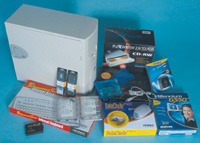
much faster. I elected to try the Pinnacle Studio Deluxe package that
includes a FireWire card with two FireWire ports and a breakout box that
can take video and audio signals to or from a VHS or S-VHS camcorder or
VCR. Along with the DV editing software included, I will be able to do
simple editing of old VHS tapes as well as those I capture nowadays on
my Canon Optura DV camcorder.
Although around $1500 in hardware has been invested in this particular
PC it is still only a mid-range computer. It's possible to build
a computer for under $500 and it is also quite easy to build one that
would cost $5000 such is the variety of components that can be purchased.
Nowadays, though, the actual computer is the least costly part of a complete
system. As you'll note the two high-end monitors I tried with this
digital imaging system cost more than the computer. In reality it's
worth spending money on a good large monitor as it is what you'll
be staring at for hours on end. More expensive monitors deliver better
images and the bigger a monitor the more space you'll have to work
on all those images that need editing.
Sadly, the most expensive part of a good computer system will probably
end up being the software. As already noted the operating system is the
most expensive part of the basic computer. Then you'll need a digital
imaging program such as Adobe Photoshop, although Photoshop Elements will
work just as well for 90 percent of image-editing requirements by non-professionals.
Paint Shop Pro, published by Jasc, is also another program worth considering
as a lower cost alternative. Inevitably you'll need a word processor
and maybe even a spreadsheet to calculate all those costs. This means
you'll likely end up with Microsoft Office, which is a really good
if costly package, as it is the standard used by almost everyone, including
Mac users.
Complete Components
These are the components I used to build my mid- to high-range PC (approx.
prices, January 2003):
Basic Computer
Case: Antec SX635 with 350w power supply (www.antec-inc.com)
$80
Motherboard: Soyo K7V Dragon (www.soyousa.com)
$100
CPU: AMD Athlon 1.2GHz (www.amd.com)
$60
CPU Fan: Antec Jet Cool (www.antec-inc.com)
$30
Graphics Card: Matrox G550 (www.matrox.com)
$130
Memory: Kingston Value RAM 2 x 256MB DDR modules (www.kingston.com)
$80
Hard Drive: 80GB Seagate 7200rpm Barracuda (www.seagate.com)
$100
CD-RW: Plextor PlexWriter 24/10/40A (www.plextor.com)
$80
Floppy Disk Drive: Sony (www.sony.com)
$20
Keyboard: Antec Internet-Ready (www.antec-inc.com)
$20
Mouse: Microsoft Optical Intellimouse (www.microsoft.com)
$40
Operating System: Windows XP Home Edition (www.microsoft.com)
$199
Extras
Monitor 1: NEC FP1375X 22" CRT monitor (www.necmitsubishi.com)
$900
Monitor 2: KDS RAD-7 LCD 17" monitor (www.kdsusa.com)
$700
PC Card Reader: Antec DataChute PCI (www.antec-inc.com)
$99
FireWire Adapter: Pinnacle Studio Deluxe (www.pinnaclesys.com)
$299
Cost of this DIY computer without
a monitor or the extra cards is approximately $1000, while a similarly
equipped computer would cost between $900 and $1400 from a mail-order
company such as Dell or Gateway. The nearest equivalent Apple Macintosh
would cost about $1500.
Resources
Web Sites
If you type in "Build your own PC" on www.google.com
you will find lots of useful web sites to help you. They also tend to
be more current than books. Check out these sites:
www.Techtv.com/buildapc
www.pcmech.com/byopc
www.hardwarecentral.com
www.motherboards.org
www.mysuperpc.com
www.tomshardware.com
www.buildyourowncomputer.net/learntobuild.html
Books
It's very easy for books on the subject to become outdated as technology
changes so rapidly. However there are several books on upgrading and repairing
computers that provide a ton of information for those who like to work
on computers themselves. The following two books are updated annually
and are a mine of information for those building their own computers as
well.
Upgrading and Repairing PCs, 13th edition by Scott Mueller; published
by Que; $59.99.
The Complete PC Upgrade & Maintenance Guide, 12th edition by Mark
Minasi, published by Sybex; $59.99.
Upgrading Your Home PC, by Glenn Weadock, published by Sybex;
$29.99.
Video
This VHS tape covers the advantages and disadvantages of building your
own PC and then takes the better part of an hour to show you how to build
your own computer. If you're interested in building your own computer
and have never done any work on one before this tape makes an ideal starting
point.
How to Build Your Own PC, by TechTV, published by Que; $24.99.
|