| |
1
Photos © 2003, David B. Brooks, All Rights Reserved
|
|
Instead of the usual numerical
version increase for Photoshop, this latest edition is named Adobe Photoshop
CS (Creative Suite). This identifies this version as part of a larger
upgrade of most of Adobe's graphics applications, including--in
addition to Photoshop--InDesign, Illustrator, GoLive, and Acrobat
6.0, all newly upgraded as a suite and all new at the same time. It
is not just that Adobe has coordinated the upgrades of these applications
in the same time frame, but it has integrated many functions seamlessly
between all of them. They have also synchronized them as to how color
management and many preferences perform so they are compatible both
in usability (interface design) and in operation. Some of these shared
advantages, like access to the creation of Acrobat 6.0 .PDF documents,
are included in the stand-alone Photoshop CS upgrade purchase. However,
for anyone wanting to, Adobe is offering an affordable upgrade to either
the Standard or Premium Creative Suite collection of new applications,
even if you just have Photoshop 7.0 currently.
|
|
Targeted At Graphics
Pros
The Adobe Creative Suite target market is graphics production professionals
in all media, from print to the web. It is envisioned that the environment
in which the applications will typically be used as a networked work group.
For a photographer who does professional work for advertising, editorial,
marketing, catalogs in print or on the web, many if not most of the two
dozen plus new features in Photoshop CS will be potentially useful creatively
or as an enhancement to productivity. Even for independent professional
photographers, whether commercial, portrait, or fine art, much of the
Adobe Creative Suite provides the ability to not just produce more or
less finished material for print or online use, but also the creation
of professional quality promotional brochures, portfolios, presentations,
multiple page e-books, ads, and whatever else being in business for yourself
demands. For the professional-level individual enthusiast, Photoshop CS
contains a dozen or more new features and enhancements of considerable
value, many of which I'll describe in greater detail.
|
|
Installing And Working
With Photoshop CS
Upon receiving the final release version of Adobe Creative Suite, I installed
Photoshop CS, Acrobat 6.0, and InDesign CS on one of my Mac G4s, which
had just been upgraded to run OS 10.3 (Panther). The Adobe Creative Suite
system requirements provide support for Windows 2000 (with Service Pack
3) and Windows XP, running on a Pentium III or 4 processor PC; or on an
Apple Mac G3, G4, or G5 with OS 10.2.4 or higher operating system. In
other words, older computers running Windows X86 operating systems and
Macs running OS 9 or earlier operating systems are not supported. The
really good news, even though this is a big set of applications requiring
a lot of disk space, is that Adobe Creative Suite installs easily, smoothly,
and fault free.
When I first installed CS I was in the middle of a project of scanning
and printing 35mm film. This allowed me to become familiar with the basic
photographic processing functioning of Photoshop CS, which has not changed.
Some of my scans, however, were high-bit raw output files, which I color
corrected completely in Photoshop CS. I found that there is extended support
for 48-bit Mode tools and processes, including all but the creative filter
selections. The ability to do perspective control adjustments on 48-bit
files, for example, is a great advantage.
|
|
New Features Of Interest
To Photographers
Some of you might disagree with the new features I'll highlight
here and wonder why I covered this one and not that one. Photoshop is
like a word processing application, such as Microsoft Word, which I have
used for years and, also like Photoshop, which I use almost every day.
Even so, I only use a portion of the tools and capabilities provided by
Word, and likewise by Photoshop. This, I think, is true of most users
of an image-editing application. The bottom line is that I am not about
to try to describe or extol the virtues or shortcomings of something I
have no experience using myself.
1. The New Browser: Browsers are so common, almost ubiquitous,
one could easily discount "newness" and pass on to other topics.
However, besides being exceedingly well designed and providing both ease
of use and comprehensive information support like EXIF and metadata, the
Photoshop CS Browser is much more. It provides support and access to all
documents in all formats that can be created or opened by every application
in the Creative Suite. It also supports simple drag and drop arrangement
of the displayed thumbnails and their files in any desired order. Even
more significantly, you can select Automate from the Browser's menu
that contains all of the automated process Photoshop CS supports including
Batch Processing, Contact Sheet II, Picture Package, Web Photo Gallery,
Photomerge (to build a panorama), and, what I find is potentially most
valuable to photographers, PDF Presentation. All of these processes can
be applied to one, a selection of several, or all of the files represented
by thumbnails in a folder open in Browser.
For instance, with PDF Presentation you can create either a multi-page
e-book or a slide show containing all of the images in a folder directly
from Browser without ever having to open any of the images in Photoshop.
Besides being easy and efficient, PDF Presentation creates an Acrobat
.PDF file that is supported by all of the major computer platforms, including
Mac, Windows, UNIX, and Linux. Also of key importance to photographers,
Acrobat provides effective customizable security, so you the user can
enable or deny edit access if you don't want any of your images
copied, and enable or deny even the ability for someone receiving the
.PDF file to print the contents.
|
|
2. Camera Raw: Less
than a year ago Adobe created a Camera Raw plug-in for Photoshop 7.01
(see my report on page 98 in the August 2003 issue of Shutterbug). In
this new Photoshop CS, Camera Raw is an included, integral function that
is launched automatically by opening a digital camera raw file (of those
cameras supported). Although not listed as supported, I found Photoshop
CS Camera Raw opened and recognized raw files made with my new Canon EOS
Digital Rebel (D300) camera. This new Camera Raw is a redesigned, improved,
and expanded version of last year's plug-in offering. The most obvious
improvement is the histogram, which is now in a box to the right and above
the controls for adjusting image values. The adjustment parameters have
been expanded in to include detail, lens corrections, and calibration
adjustments.
I was able to open and process raw files with Photoshop CS Camera Raw
from four different cameras. I was also able to compare the resulting
photographs as color corrected images with those that had been acquired
and color corrected by other means. There were differences in the results
from Photoshop CS Camera Raw with my previous images I have on file, not
so much between cameras as between distinctly different subjects and shooting
conditions.
These differences, I must assume, come from distinctions in how each source
interprets the data. There does not seem to be any clear technical quality
distinctions. In other words, if you like the "look" of the
result, the obvious convenience and efficiency of Adobe Photoshop CS Camera
Raw will be a significant advantage for most digital camera users.
|
|
3. Contact
Sheet II: Although Adobe's press information did not mention
it, the one automated utility I use most frequently, Contact Sheet II,
has been again refined since its introduction two versions back. Again
the Adobe programmers have expanded the size of the thumbnail images,
reducing the amount of wasted white space in each contact sheet page generated.
In addition, the utility seems to function more efficiently, and the choices
to custom configure how the thumbnails are produced has been expanded
to suit different kinds of image types, formats, and characteristics.
4. Color Replacement: For those of you
who read my report on Photoshop 7.0 when it was released, you may recall
that I took exception to the new Healing Brush, not finding it a useful
or effective retouching tool. That criticism is and was based on 50 years
experience photographing people and doing all of my own retouching. And,
as far as I am concerned, my opinion still stands. However, in Photoshop
CS, Adobe has added a new brush called Color Replacement to the Healing
Brush group in the toolbox.
I find this new brush extremely effective, efficient, and imminently useful
in retouching blemishes, adding and altering the coloration of makeup,
and even to enhance or change eye color. For subjects other than portraits,
like product illustrations, imperfections can be restored locally, easily
and efficiently. The one thing I would recommend to improve the Color
Replacement brush is an adjustment to allow varying the transparency of
application so a user could build up the color gradually with multiple
strokes of the brush.
|
|
5. Histogram:
With previous versions of Photoshop the Histogram information graph window
was accessed from the Edit menu, and it would not stay on screen as you
made adjustments to image values. In Photoshop CS the Histogram Palette
command is now found in the Window menu drop-down selection of Palettes,
like Navigator. Click on the Histogram Palette and the window is put on
the desktop. Then it may be docked in the Palette Well with other Palettes
for one-click access. Or, you can now have the Histogram free-floating
in the work space, where it will remain in view and reflect any edit/adjustment
changes made to an open image. In addition, the Histogram now has many
different view options, from a simple combined graph display of the total
density distribution of an image to a breakout of each color channel displayed
separately. You can even combine graphs in overlapping colored segments
to illustrate the color content of the image open in the work space.
6. Match Color: One of the first commercial uses of digital
editing was employed by automobile companies. They found that it was a
way to simply change the paint color of the car for an ad without re-painting
and re-photographing the car. That capability has now been made easy and
direct with the Match Color that is a new Photoshop CS Image/Adjustment
menu command. Knowing the history of this digital image process I tried
it with a pair of shots of restored American 1940s cars. But, it can also
be applied to many other more everyday uses, like matching garment and
skin tones in a series of wedding candids to produce a more consistent
color quality in an album.
The matching can also be applied to selections within two photographs.
For instance, if you use Photoshop's Lasso tool to select just the
skin-tone areas of each image, the Color Match process can be applied
just to the selected areas of each image. In addition, if you are going
to match a number of images to just one, the "Statistics for the
Source" (the basis of the match) can be saved and then those Statistics
can be loaded in the dialog and applied identically to any number of Target
images.
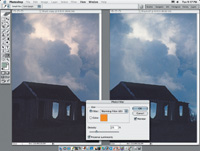
7. Photo Filters: Another Photoshop CS Image/Adjustment
command opens a dialog that allows the selection of most of the common
filters photographers have used in front of their lenses. Unfortunately,
these Photoshop Photo Filters are intended to apply to RGB color images.
So those that are really useful photographically are the four "color"
filters like the 81 and 85 warming and 80 and 82 cooling filters. As for
the rest of the colors, like "green," I believe these Photo
Filters will be used more by production designers and illustrators for
"creative" purposes and by a few photographers who think it
is "creative" to produce color distorted photographs.
Perhaps I shouldn't be so critical. Considering that Photoshop's
Color Balance Image/Adjustment tool cannot be applied globally to alter
an image's overall color balance, the Photo Filters can be used
in that manner. By using the Density slider carefully, the Photo Filters
can function as an effective additive global method of adjusting a photographic
image's color balance as part of the color correction process. For
instance, a photo image that is a bit strong in the reds could use a small
percentage of cyan to neutralize it.
|
|
8. Shadow/Highlight
Correction: One of the more intimidating and difficult tools
in Photoshop has been Curves. Using Curves to adjust the relative brightness
of different exposure levels, in backlit photographs for instance, requires
a deft hand. Photoshop CS now has an Image/ Adjustment dialog tool comprised
of two sliders that makes many of the tasks formerly accomplished with
Curves much easier and more effectively executed.
However, I should caution that applying a Shadow/Highlight Correction
to an image that has not been optimized using Levels can have a disastrous
result. This may not be apparent in the on-screen image, but it can reproduce
a print with inferior quality. So, as a general rule, if Shadow/Highlight
Correction becomes a part of a color correction routine it should only
be applied after Levels has been used to optimize the image data to fit
and fill the gamut.
Photomerge: This utility is designed to stitch a series
of individual images to create a panoramic view of a subject. It is not
something I do as a photographer, so in this instance I used the resources
provided by Adobe to perform a trial and found the process is quite easy.
It seems to produce a high quality result in which the final image appears
seamless. Many digital cameras have limited wide angle lens capability,
so Photomerge is a great potential advantage with photographs of interiors
and some outdoor scenes.
Enhanced Picture Package: This printing utility now has
greater flexibility and is able to support customized layouts of photographs.
Evaluation & Recommendation
As I stated in the beginning of this report there are a dozen or more
new features and improvements in the new Photoshop CS. I have not mentioned
them all, especially those which may be of value to photographers who
are using their images to support a website. To facilitate access to these
features Adobe has provided a wealth of support information in documents
and videos, which are a part of the Photoshop CS package.
Some of you may recall that when Adobe Photoshop 7.0 was released I found
that the improvements were not sufficient to recommend an upgrade. With
Adobe's introduction of the Creative Suite and Photoshop CS, I believe
that photographers will benefit enough to find value in investing the
$169 for the upgrade. In addition, some photographers, particularly professionals,
can also benefit if they have reason to use some or all of the applications
in the new Adobe Creative Suite like InDesign, GoLive, and Acrobat. The
upgrade price is $549 for the standard suite, which is considerably less
than the first-time full version of Photoshop CS, which is $10 more than
the $619 full price of Version 7.0.
I don't expect that very many photographers will immediately agree
with me that the most valuable aspect of Adobe's new Creative Suite
and Photoshop CS is Acrobat. This program provides great support for communicating
with photographic images at a high quality level, with good security protection
in the bargain. The Acrobat capability from within Photoshop CS is a convenient
and efficient way to make a slide-show presentation or a multi-page document.
These capabilities are easily extended or multipurposed to become multimedia
and hard copy print communications using the same original resources with
little additional effort. The potential for photographers is only hinted
at by the extent to which the software and digital imaging industries
have already employed Acrobat for both documentation and information communications.
With this, and other features, the new CS version of Photoshop contains
solutions photographers have been looking for since the first days when
digital became an influence and part of photography.
For more information, visit the company's website at: www.adobe.com.
|